


I’ve yet to see a team struggle because they didn’t have enough tools. If anything, it’s usually the opposite. Too many tools, not enough clarity.I keep hearing the same thing from operations leads, project managers, and team heads. Work is scattered. Updates live in different places. People spend more time figuring out what’s going on than actually moving things forward. That’s usually the point where having the best work management software starts to make a real difference.
There’s data behind this, too. According to Asana’s Anatomy of Work Index, employees spend 58% of their time on “work about work”, including searching for information, switching between tools, and coordinating tasks. That kind of overhead is often the result of fragmented systems and disconnected workflows. When tasks live in one place, updates in another, and decisions somewhere else, work doesn’t just slow down; it becomes harder to trust what’s actually accurate.
To cut through that noise, I evaluated over 20 work management tools using G2 Data and patterns across verified user reviews. I spent time comparing how platforms like Asana, monday, ClickUp, Wrike, Smartsheet, Teamwork.com, and Keka actually hold up once teams start using them day to day.
If you’re leading a team, managing projects, or responsible for keeping work moving across functions, this guide is built for you. What you’ll find here is my shortlist of the best work management software for 2026, tools that teams don’t just implement, but rely on to stay aligned, move faster, and keep work from slipping through the cracks.
9 best work management software for 2026
-
Slack: Best for real-time team communication and coordination
Centralized messaging platform that connects conversations, tools, and updates in one place for faster collaboration. ($7.25/user/month)
-
Asana: Best for structured task management and accountability
Organizes work into tasks, timelines, and workflows with clear ownership and progress tracking across teams. ($10.99/user/month)
-
monday Work Management: Best for customizable workflows across teams
Flexible platform with visual boards and automation to manage projects, processes, and cross-functional work. ($9.00/user/month)
-
Smartsheet: Best for spreadsheet-style work and project management
Grid-based system that combines familiar spreadsheet functionality with automation, reporting, and collaboration. ($9.00/user/month)
-
ClickUp: Best for managing work in an all-in-one workspace
Combines tasks, docs, goals, and reporting into a single platform designed to replace multiple tools. ($7.00/user/month)
-
Confluence: Best for documentation and knowledge sharing
Central workspace for creating, organizing, and collaborating on documentation, plans, and team knowledge. ($4.58/user/month)
-
Wrike: Best for detailed work tracking and enterprise-level visibility
Provides advanced workflows, reporting, and real-time visibility for managing complex projects at scale. ($10/user/month)
-
Keka: Best for HR-driven work management and employee operations
Combines HR, payroll, attendance, and performance management into a unified system for employee workflows. (Pricing available on request)
-
Teamwork.com: Best for managing client work and billable operations
Connects project management with time tracking, budgeting, and invoicing for service-based teams. ($9.99/user/month)
*These work management tools are top-rated in their category, according to G2’s Spring 2026 Grid Report. I’ve added their monthly pricing to make comparisons easier for you.
What’s the best work management software for you?
A quick comparison of the top work management tools based on use case, workflow style, ease of adoption, and team fit.
| Tools | G2 rating | Ease of adoption | Workflow style | Team fit |
| Slack | 4.5/5 | Very easy | Conversation-driven | Cross-functional teams |
| Asana | 4.4/5 | Moderate | Task and timeline-based | Ops, marketing, product teams |
| monday Work Management | 4.7/5 | Very easy | Visual and customizable | SMBs, growing teams |
| Smartsheet | 4.4/5 | Moderate–high | Spreadsheet-driven | Enterprise, operations teams |
| ClickUp | 4.7/5 | Moderate | Highly customizable | Teams looking to replace multiple tools |
| Confluence | 4.1/5 | Easy | Content and knowledge-driven | Product and engineering teams |
| Wrike | 4.2/5 | Moderate–high | Structured and approval-based | Enterprise teams |
| Teamwork.com | 4.4/5 | Easy | Delivery and collaboration-focused | Agencies, services teams |
| Keka | 4.5/5 | Easy | HR workflow-driven | SMB HR teams |
9 best work management software I recommend for 2026
In simple terms, work management software helps teams plan, track, and execute work across projects, processes, and day-to-day operations. For me, the best work management tools don’t just organize tasks; they make work visible, aligned, and easier to move forward without constant coordination.
Think about managing cross-functional projects, tracking deadlines, assigning ownership, handling approvals, or keeping stakeholders updated. Instead of relying on scattered tools, emails, or spreadsheets, work management software brings everything into one place so teams can see what’s happening and act on it in real time.
From what I’ve seen while analyzing G2 reviews and evaluating these tools, visibility matters as much as functionality. Strong platforms don’t just track tasks, they show how work connects across teams. They reduce the need for status updates, eliminate manual follow-ups, and make it easier to understand progress without chasing information.
While some tools bring structure and accountability to execution, and others aim to combine everything into a single system, adoption is what ultimately determines whether a tool works. According to a recent survey by monday.com, 82% of companies use work and project management software to drive efficiency, yet many teams still struggle with fragmented workflows and tool overload.
That’s what stood out to me the most. The best tools aren’t the ones with the most features, they’re the ones teams actually use consistently. They reduce friction, improve visibility, and help teams move faster without adding complexity.
How did I find and evaluate the best work management software?
To build this list, I analyzed top-performing platforms in G2’s work management software category, focusing on ratings, G2 Grid Report placements, and detailed user feedback. Instead of relying only on scores, I reviewed thousands of verified G2 reviews using AI-assisted analysis to identify consistent patterns around ease of use, collaboration, workflow flexibility, visibility, and reliability.
Because work management tools vary by team structure and use case, I focused on practical, day-to-day factors — how well each tool supports task tracking, cross-functional collaboration, workflow customization, and overall execution. I also evaluated how these tools perform in real-world scenarios.
Combining G2 Grid report insights with review trends helped ensure a balanced, real-world perspective.
Screenshots in this article may include a mix of G2 product profile images and publicly available UI visuals to represent the user experience.
What makes the best work management software: My selection criteria
To narrow down the best work management software, I focused on what actually matters once teams start using these tools daily. These criteria reflect patterns I consistently saw across G2 reviews and how different teams evaluate tools when making a buying decision.
- Use case fit: Every tool approaches work management differently. I looked at whether each platform is built for communication, structured execution, client work, HR processes, or documentation, and how effectively it supports that specific use case instead of trying to do everything at once.
- Structure versus flexibility: Some platforms guide you into a defined way of working, while others let you build workflows from scratch. I evaluated how much control each tool gives teams and whether that flexibility helps or slows them down over time.
- Visibility into work: This came up repeatedly in reviews. The strongest tools make it easy to understand progress, ownership, and priorities across teams without needing constant check-ins or manual updates.
- Collaboration experience: I considered how well teams can communicate, share updates, and stay aligned within the tool. Poor collaboration is a major issue in modern workplaces, with 70% of employees saying it directly impacts productivity.
- Automation and efficiency: I looked at how effectively each tool reduces repetitive work through automation, whether it’s updating task statuses, triggering workflows, or eliminating manual follow-ups.
- Ease of adoption: Even powerful tools fail if teams don’t use them consistently. I prioritized platforms that are intuitive enough for quick onboarding while still supporting more advanced use cases as teams grow.
- Scalability: I evaluated how well each tool handles increasing complexity, more users, more projects, and more cross-functional collaboration, without becoming harder to manage.
- Integration capabilities: Since most teams don’t operate in a single tool, I looked at how well each platform connects with other systems like CRMs, communication tools, and file storage to reduce fragmentation.
- Reporting and decision support: Beyond tracking work, I prioritized tools that provide meaningful insights, dashboards, workload visibility, and reporting that help teams make faster, better decisions.
While no single tool excels in every area, each one on this list performs strongly in the areas that matter most for specific teams and workflows.
The list below contains genuine user reviews from the work management software category. To be included in this category, a solution must:
- Provide a single data repository for project information and related data
- Allow internal and external users to work and collaborate on projects
- Manage roles and access rights for project managers and other users
- Deliver standard workflows that can be customized per department
- Plan, schedule, and monitor projects and tasks across the organization
- Include features for collaboration, communication, and data sharing
*This data was pulled from G2 in 2026. Some reviews may have been edited for clarity.
1. Slack: Best for real-time team communication and coordination
G2 rating: 4.5/5 ⭐
Slack is a team communication platform built to replace scattered emails, disconnected chats, and fragmented updates with a single, organized workspace. From what I’ve seen across teams and G2 reviews, this shift alone makes a noticeable difference in how work flows day to day.
It brings conversations, files, and tools into one place, making it easier for teams to stay aligned without constantly switching contexts. From my experience using Slack across different teams, it doesn’t just support work; it becomes where work actually happens.
What stood out to me almost immediately was how conversations are organized. Instead of everything sitting in one place, Slack breaks discussions into channels tied to teams, projects, or topics. From what I observed, that structure makes it easier to follow context without needing constant clarification. Over time, those channels also become a searchable history of decisions, which helps reduce repeated questions and keeps work moving faster across cross-functional, remote, and hybrid teams.
I also saw this reflected in G2 Data, where Slack consistently performs at the top of the category. It holds a satisfaction score of 100 alongside a market presence score of 99, making it one of the most widely adopted tools in this space. To me, that signals something important: teams don’t just try Slack, they continue relying on it as a core part of their workflow.
Another thing that stood out to me from G2 reviews is how effectively Slack supports real-time communication and collaboration. Users consistently highlight how quickly teams can share updates, jump into discussions, and stay aligned without delays, which makes it especially valuable for distributed teams that rely on fast, ongoing coordination.
I also found that Slack’s integrations play a big role in keeping work connected. Updates from tools like Google Drive, GitHub, and Salesforce flow directly into conversations, which reduces context switching and keeps teams aligned without constantly jumping between platforms. That’s where it fits naturally alongside business instant messaging software and supports teams building connected systems through workflow automation.
It also extends beyond internal communication. With features like Slack Connect, teams can work directly with clients, vendors, and partners in shared channels, which removes a lot of the back-and-forth that usually happens over email.
That said, as Slack activity increases, notifications can start to feel overwhelming, especially in highly active channels. This can impact focus and make it harder to keep up with important updates in real time. In practice, teams that set clear norms around channels, threads, and notification settings tend to manage this more effectively, making the experience much more controlled as usage scales.
I also noticed that as conversations grow, especially within threads, it can become harder to quickly locate specific updates or follow discussions end to end. In busy channels, replies can be missed, or context can get fragmented, and search may not always surface exactly what you’re looking for right away. Threaded conversations and replies allow teams to manage multiple discussions simultaneously, giving flexibility in how communication is structured.
If I had to position it clearly, I’d recommend Slack for teams that rely heavily on real-time and async communication — especially cross-functional, remote, hybrid, or distributed teams that need a central place to stay aligned. From what I’ve seen, it keeps communication fast, connected, and easy to navigate, which is why it often becomes the center of daily work for these teams.
What I like about Slack:
- Slack makes communication immediate and easy to follow. Conversations stay organized, and it’s simple to revisit past discussions when needed.
- Its integration ecosystem is another major advantage. Bringing updates from multiple tools into one place reduces context switching and keeps workflows connected.
What G2 users like about Slack:
“Slack connects with tools like Google Drive, GitHub, etc., which helps me to get the updates from all these tools in a single place. Instead of a single long chat, it uses channels, which keep the discussions focused and make it easy for us to find the information later.”
– Slack review, Suprabha B.
What I dislike about Slack:
- Notifications can become overwhelming in highly active channels, which can impact focus. However, with the right use of threads, mentions, and notification settings, most teams are able to manage this effectively.
- As conversations grow, especially within threads, it can be harder to track discussions or quickly find specific messages, particularly in busy channels, though using threads, saved messages, and consistent workflows helps keep information more organized over time.
What G2 users dislike about Slack:
“During busy projects, notifications can get overwhelming and messages pile up quickly if I step away for a while. Even when something isn’t directed to me, I still get notified and end up checking it, which breaks focus and eats up time. I usually mute channels or set reminders to manage it. Important updates can also get buried when multiple conversations happen at once, especially if people don’t consistently use threads.”
– Slack review, Michele V.
If you’re comparing Slack plans, this article on Slack pricing based on feedback from 38K+ users gives a clearer picture of what you actually get with free vs. paid tiers.
2. Asana: Best for structured task management and accountability
G2 rating: 4.4/5 ⭐
Asana is a work management platform built to help teams organize tasks, track progress, and manage projects with clear ownership and timelines. From what I’ve seen while using it and analyzing G2 reviews, it’s particularly effective at turning scattered work into structured, trackable workflows so teams can move from planning to execution without losing visibility.
From my experience using Asana, the biggest shift comes from how clearly work is defined. Tasks aren’t just listed, they’re assigned, prioritized, and connected to larger goals. That structure makes it much easier to understand what’s moving forward, what’s blocked, and who’s responsible without constant follow-ups. This is where Asana really stands out for accountability.
What stood out to me next is how everything connects across teams. Projects break down into tasks and subtasks, timelines show dependencies, and updates stay tied to the work itself instead of getting lost in conversations. I found this especially useful when coordinating work across multiple stakeholders, where visibility and alignment can easily break down.
This structured approach is reflected in G2 Data as well. Asana holds a G2 score of 92 and an average payback period of 8 months, indicating strong overall performance along with relatively quick time-to-value for teams adopting it. That combination signals both reliability and efficiency when it comes to managing ongoing work.
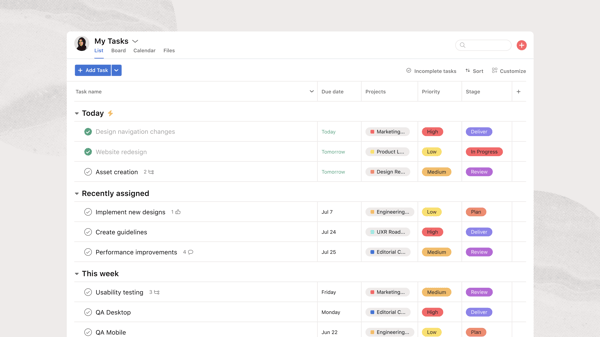
Another area where I saw consistent value is in planning and visibility. Views like lists, boards, timelines, and calendars give teams multiple ways to track progress and manage dependencies. In my experience, this makes Asana particularly effective for coordinating long-running projects and keeping cross-functional work aligned without constant check-ins.
Beyond managing day-to-day work, I also found Asana’s goal tracking useful for connecting day-to-day work with larger priorities. Teams can link tasks and projects to broader goals, which makes it easier to see how work is contributing over time. In practice, this adds a layer of clarity beyond execution, especially for teams that want to track progress at both the task and outcome level.
I also want to highlight how well it supports recurring work. Tasks that repeat on a schedule can be automated, so teams don’t have to recreate them each time.
Getting started with Asana can take some upfront effort, especially for teams managing more complex workflows. Setting up projects, dependencies, and automation isn’t always immediate, and it typically requires some initial planning before everything starts to feel structured. However, this approach tends to work best for teams that prefer well-defined processes.
As projects grow in size, navigating larger boards and tracking multiple dependencies can require more ongoing organization. For teams handling evolving or detailed workflows, maintaining that structure becomes part of how they use the platform, which ultimately helps keep tasks, timelines, and ownership clearly aligned.
I would recommend Asana for teams that need a structured way to manage work, especially when accountability, visibility, and cross-team coordination are critical. It works particularly well for operations, marketing, and product teams that rely on clear ownership and timelines to keep projects moving.
What I like about Asana:
- It brings a strong sense of accountability to complex work. Tasks are clearly assigned, prioritized, and connected to timelines, which makes it easier to track ownership without constant follow-ups.
- I found the task and project structuring especially effective for cross-team coordination. Features like timelines, dependencies, and calendar views make it easier to manage long-running projects and keep multiple stakeholders aligned.
What G2 users like about Asana:
“I use Asana for tracking projects for individuals and teams, and I find it really useful for easier and more transparent tracking. I like how it makes audits simpler and helps with showcasing and demonstrating for ELT. The ability to add screenshots, end dates, and expected dates to tasks is great. It makes tracking time spent on projects straightforward. Simple reporting and easy tracking of team goals are features I enjoy. These features save time, reduce confusion, and keep work moving smoothly.”
– Asana review, Stefan D.
What I dislike about Asana:
- Setting up workflows, dependencies, and automation can take time, especially for complex projects. However, once configured, it becomes much easier to manage and scale.
- As projects grow larger, navigating boards and tracking dependencies can become harder, but teams that maintain structured workflows tend to manage this more effectively over time.
What G2 users dislike about Asana:
“While I generally enjoy working with Asana, one challenge I’ve noticed appears when projects grow significantly during execution. In technology projects, it’s quite common for scope and requirements to evolve, and when the number of tasks and subtasks increases a lot, it can become harder to quickly review dependencies and keep everything aligned with the original objectives that were defined at the beginning of the project. Another aspect that sometimes makes things a bit more difficult is navigating very large project boards.”
– Asana review, Pascual G.
3. monday Work Management: Best for customizable workflows across teams
G2 rating: 4.7/5 ⭐
Some teams want a strict structure. Others want a system they can shape around how they already work. monday Work Management leans heavily into that second use case, which is why it often appeals to teams that need flexibility without losing visibility.
In my analysis, monday works best when teams want to build workflows that fit their own processes rather than adapt to a fixed model. Boards, views, dashboards, and automations all feel designed to make work more visual and easier to track across functions.
That flexibility is backed by data. monday has a G2 Score of 90, and its customer mix skews heavily toward smaller organizations, with 64% of users coming from small businesses. That lines up with how I see the product positioned: teams can get started quickly, customize workflows easily, and scale usage without needing a heavy implementation effort.
The feature comparison data reinforces that point. monday scores 91% for workflows, 91% for customization, 93% for collaboration, and 94% for remote work, which makes a strong case for teams managing dynamic, cross-functional work. That tells me it’s not just well-liked overall, but actually reliable in the day-to-day areas teams depend on.
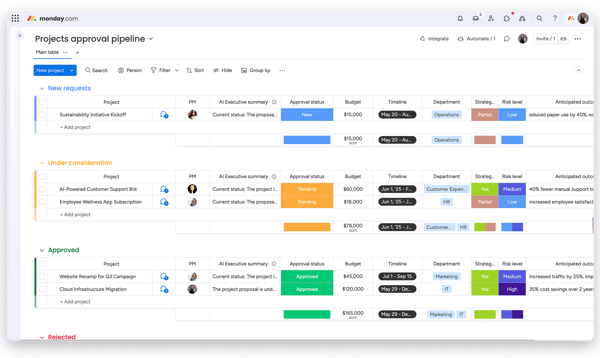
Cross-project dependencies are another area where monday.com adds practical value. Teams can link tasks across different boards and see how work connects across projects, which makes it easier to spot overlaps or delays early. In more complex workflows, that visibility helps teams stay aligned and adjust timelines without having to track dependencies manually.
monday stands out for making the experience visual. Work doesn’t feel buried. Teams can switch between boards, timelines, and dashboards without losing context, which makes it easier to keep projects moving without relying on constant status updates. That’s where it fits naturally with project collaboration resources and workflow management resources.
It also goes beyond just tracking work. The ability to connect projects with budgets and track costs alongside progress adds a useful layer, especially for teams that need to stay on top of both timelines and spend.
From what I gathered through G2 reviews, more advanced configurations can take additional effort to structure and adapt, as customization often depends on how teams set up their workflows. In practice, this makes it a better fit for teams with relatively streamlined processes, where that flexibility is easier to apply and manage.
A similar pattern shows up with integrations. Connecting more specialized or niche systems can require additional setup and validation, since not all integrations are as seamless as those with commonly used tools. Even so, for teams working with standard tools or prioritizing flexibility and ease of use, the overall experience remains reliable.
From my experience, monday Work Management stands out because it lets teams build workflows around how they already operate. It keeps work visible, adaptable, and collaborative without locking teams into a rigid framework. I’d recommend it most for teams that prioritize flexibility and customization, especially those managing dynamic or cross-functional workflows where processes are constantly evolving.
What I like about monday Work Management:
- It makes workflows highly visual and adaptable, which is useful when different teams need to track work in different ways without switching tools.
- monday’s board-based system allows teams to quickly build and modify workflows without technical setup, making it easy to experiment and iterate.
What G2 users like about monday Work Management:
“What I like best about monday Work Management is how intuitive and visual the platform is. It makes it very easy to organize tasks, track progress, and collaborate with a team in one place. The customizable boards and different views (such as Kanban, timeline, and calendar) allow teams to adapt the platform to their specific workflows. I also really appreciate the automation features, which help reduce repetitive tasks and keep everyone updated automatically.”
– monday Work Management review, Thais M.
What I dislike about monday Work Management:
- Some advanced workflows may feel a bit less flexible when it comes to deeper automation, especially for highly customized setups, though the existing level of customization comfortably supports most day-to-day needs.
- Certain integrations and features are better suited to standard use cases than highly complex environments, but they still work well for teams managing typical project workflows and prioritizing ease of use.
What G2 users dislike about monday Work Management:
“One aspect that could be improved in monday Work Management is the learning curve for new users. Because the platform is highly customizable and feature-rich, it can take some time for teams to fully understand how to structure boards and workflows efficiently. However, once the system is properly set up, it becomes a very powerful tool for managing projects and collaboration.”
– monday Work Management review, Nelson S.
Looking into monday.com? Check out my colleague’s in-depth review of monday Work Management for a closer look at features, usability, and real-world use cases.
4. Smartsheet: Best for spreadsheet-style work and project management
G2 rating: 4.4/5 ⭐
Not every team wants a visual board or a simple task list. Some teams need precision — timelines, dependencies, resource allocation, and reporting that can handle multiple moving parts at once. When I looked into Smartsheet, what stood out early was how strongly it leans into that need for structure and control.
What I found interesting is how it builds on something most teams already understand: spreadsheets. But instead of stopping there, it layers in project tracking, automation, and reporting capabilities that make it suitable for more process-driven work. That combination of familiarity and depth feels intentional, especially for teams that are already comfortable working with structured data.
As I went deeper, the way Smartsheet is adopted started to make more sense. According to G2 Data, 26% of Smartsheet users come from enterprise organizations, which is one of the highest in this category. Alongside a market presence score of 82, this points to strong adoption in teams managing large-scale, process-heavy operations.
Where this becomes especially clear is in planning and execution. From what I saw across G2 reviews, features like Gantt charts, dependency tracking, and resource management are not just add-ons, they are central to how teams operate within the platform. That makes it particularly useful for environments where tasks are tightly connected, and timelines need to be managed carefully.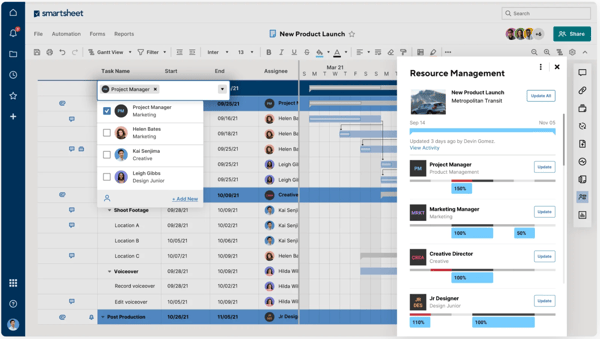
It’s not just about planning, but what also stands out here is the flexibility in how work can be viewed and managed. Teams can switch between grid, Gantt, card, and calendar views depending on what they need, which makes it easier to track and manage projects without being locked into a single format.
Visibility is another major strength tied to this feature. Dashboards and reporting tools make it easier to track progress without getting lost in the underlying data, which is especially valuable for stakeholders who need a high-level view without diving into the details.
Managing a single project is straightforward, but what I find more useful is how Smartsheet brings multiple projects together. That portfolio-level view makes it easier to keep everything aligned when several initiatives are running at once, without constantly switching between sheets. Whether it’s timelines, campaigns, or operational tracking, teams can shape workflows to fit their specific needs while still maintaining a consistent way of managing progress.
That said, as I went through G2 feedback, Smartsheet’s spreadsheet-style interface seems to go beyond basic familiarity. While the layout is easy to recognize, working with formulas, cross-sheet references, and more advanced configurations can take some adjustment, especially for teams setting up detailed workflows. For teams that prefer structured, precision-driven project management, though, this depth tends to work in their favor.
A similar pattern shows up in reporting. While dashboards give a clear view of project progress, customization and drill-down options follow a more defined structure than dedicated analytics tools. For teams focused on operational visibility and consistency, this still supports day-to-day tracking effectively.
I’d recommend Smartsheet for teams that need a structured, spreadsheet-driven approach to managing work, especially when projects involve dependencies, timelines, and detailed tracking. It works particularly well for operations, PMO, and enterprise teams that rely on control and visibility across multiple moving parts, and are comfortable working within a more data-heavy environment.
What I like about Smartsheet:
- Smartsheet brings a spreadsheet-like familiarity to complex project management, making it easier for teams to manage dependencies, timelines, and large datasets without learning a completely new system.
- Its reporting and dashboard capabilities are particularly strong for tracking large-scale projects with multiple moving parts.
What G2 users like about Smartsheet:
“It’s flexible enough to build trackers, schedules, and dashboards, but structured enough to manage tasks, dependencies, and ownership clearly. Automation, alerts, and real-time visibility make it easy to track progress and hold people accountable without chasing updates. It’s especially effective for coordinating cross-functional work and keeping everything in one place.”
– Smartsheet review, Sunny B.
What I dislike about Smartsheet:
- Working with formulas, cross-sheet references, and advanced configurations can feel unintuitive at first, although teams familiar with spreadsheets tend to adapt more quickly.
- Reporting and dashboard customization can feel limited for deeper analysis, but they still provide enough visibility for most structured project tracking needs.
What G2 users dislike about Smartsheet:
“It can feel overwhelming at first. Advanced features like formulas, automation, and dashboards aren’t immediately intuitive, so new users often need training before they can use them confidently. It can also become complex to manage as sheets scale, especially when permissions and automations stack up.”
– Smartsheet review, Sunny B.
5. ClickUp: Best for managing work in an all-in-one workspace
G2 rating: 4.7/5 ⭐
Tool sprawl is a real problem for growing teams. Tasks live in one app, docs in another, goals somewhere else, and reporting often gets layered on top. When I dug into how ClickUp works, what stood out immediately is how intentionally it tries to solve that by bringing everything into one place.
Instead of spreading tasks, docs, goals, and reporting across different tools, ClickUp brings them into a single system. The more I looked into it, the more that centralization felt like a core strength, especially for teams trying to reduce tool sprawl and manage work more efficiently without jumping between platforms.
What I kept coming back to is how easily different teams can carve out their own spaces. Instead of forcing one structure across the board, you can set up separate workspaces that still stay connected, which makes it easier to manage very different workflows in one system.
Another thing I found particularly interesting is the versatility of the system. Teams use ClickUp for a wide range of use cases, from project management and documentation to CRM and operational workflows, all within the same workspace. That flexibility makes it easier to adapt the platform to different needs instead of forcing teams into a fixed way of working.
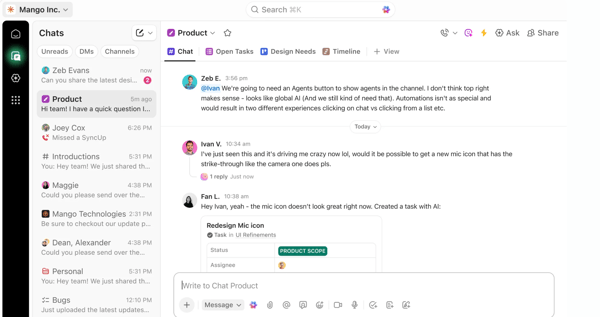
I also noticed how tightly docs and tasks are connected. Instead of managing documentation separately, teams can create and work on docs alongside tasks, which makes it easier to keep context in one place without switching between tools.
The data support that positioning. ClickUp has a G2 Score of 88, and its user base is heavily concentrated in smaller organizations, with 80% of customers coming from small businesses. That aligns with how the platform is typically adopted: teams can get started quickly, replace multiple tools with a single system, and scale usage without needing a heavy enterprise setup.
Its feature-level scores reinforce that breadth. According to G2 Data, ClickUp scores 93% for task prioritization, 92% for planning, 91% for views, and 93% for remote work. These are strong indicators of a platform that is not just broad in scope, but also effective in the core areas teams rely on for coordination and execution.
That’s also why ClickUp naturally connects to collaboration and productivity resources and broader conversations around task management. It works best for teams that want to standardize how work gets captured and tracked without splitting that process across multiple platforms.
While ClickUp’s biggest advantage is how much it brings into one platform, that breadth can make the experience feel more layered at first. Teams new to structured work management may need a bit more time to understand how views, statuses, automations, and spaces fit together, especially when adopting multiple features at once. That said, this depth also gives teams the flexibility to shape workflows around their needs, which becomes more valuable as processes mature and scale.
That depth can also show up in performance in more heavily used environments. In larger workspaces, switching between views or loading projects may occasionally feel slower than expected, particularly when teams are using the platform extensively. Even so, for organizations looking to consolidate tools, the trade-off often feels worthwhile once workflows are simplified and clearly defined.
If I had to position it clearly, I’d recommend ClickUp for teams looking to consolidate tools and manage multiple workflows in one place. It’s particularly well-suited for startups and growing teams that value flexibility and versatility, and are comfortable investing time upfront to shape the platform around their needs.
What I like about ClickUp:
- It consolidates multiple tools into one platform, allowing teams to manage tasks, docs, goals, and reporting in a single system instead of switching between tools.
- ClickUp’s customization capabilities make it possible to adapt the platform to very different workflows, from simple task tracking to more complex operational setups.
What G2 users like about ClickUp:
“A great app starts with a great UI, and they’ve definitely done their work here. Everything lives in one place, and it has replaced a bunch of scattered tools for me. Tasks and project tracking, documents, time tracking, and goals are all easy to find, update, and keep organized. On top of that, the customer service is excellent, and the tutorial helped me get up to speed quickly. I’ll be using this regularly.”
– ClickUp review, Chris H.
What I dislike about ClickUp:
- ClickUp’s feature depth can make the platform feel dense at first, particularly for teams adopting structured work management for the first time. Once teams narrow the setup to what they actually need, the experience becomes much easier to manage.
- Performance can vary slightly in larger or more complex workspaces, particularly when using multiple views and features, but this tends to improve as workflows are streamlined.
What G2 users dislike about ClickUp:
“The learning curve is genuinely steep. It took a significant amount of time to figure out how to configure everything properly (spaces, statuses, automations, and views don’t always behave intuitively at first). For someone without a project management background, the initial setup can feel frustrating and time-consuming before it starts paying off.”
– ClickUp review, Matheus D.
To get a better sense of how ClickUp works beyond features and specs, this in-depth review explores its real-world usability and trade-offs.
6. Confluence: Best for documentation and knowledge sharing
G2 rating: 4.1/5 ⭐
A lot of work slows down because the context behind it isn’t documented well. I’ve seen this happen across teams. Decisions get buried in Slack threads, process details live in someone’s head, and new team members end up asking the same questions over and over again. That’s the gap Confluence is designed to solve.
From using Confluence, what stood out to me is that it doesn’t try to manage work the way task tools do. Instead, it focuses on making documentation actually usable. Pages, spaces, templates, and collaborative editing make it easier to capture information in a way that teams can come back to, instead of constantly recreating it.
Where I found it most useful is in keeping everything connected. Product decisions, meeting notes, technical documentation, and internal processes all live in one place. Over time, it starts to feel less like a documentation tool and more like a shared memory for the team.
In day-to-day use, the integration with tools like Jira also makes a noticeable difference. Teams can link documentation directly to tickets and workflows, which keeps context tied to execution instead of living separately. This tight linkage also reduces the need to switch between tools, helping teams move faster within a single workflow.
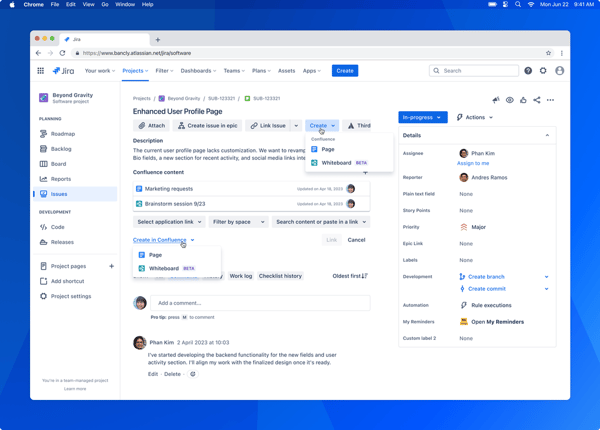
One thing I’ve come to rely on is the version history. Being able to track changes and roll back to earlier versions makes it much easier to maintain documentation without worrying about losing context. What’s more, it creates a clear audit trail, which is especially useful for teams that need accountability and controlled updates.
Another thing I’ve consistently found valuable is how well it supports structured collaboration. Multiple people can contribute, edit, and build on the same document without breaking context, which makes it much easier to keep documentation current instead of letting it become outdated.
That’s also reflected in how it’s used. A large portion of Confluence users come from mid-market and enterprise teams, which makes sense. In environments where multiple teams are working together, having a single place for documentation becomes critical to avoid misalignment.
As per G2 Data, Confluence scores 93% for document management, 92% for collaboration, and 90% for communication channels. Those are exactly the areas where I’ve seen it deliver the most value, especially when teams need a reliable system for organizing and sharing information at scale.
That’s why it fits naturally with knowledge base resources and content collaboration software. In practice, it’s the tool teams rely on to document what happened, why it happened, and how future work should happen more smoothly.
Confluence works best when teams treat documentation as a system rather than a collection of pages. As content grows, maintaining structure can take ongoing effort, and teams without clear standards for spaces, naming, and organization may find navigation less efficient over time. In that sense, Confluence tends to reward teams that already value documentation discipline.
The editing experience follows a similar pattern. Confluence is powerful for structured documentation and collaborative knowledge sharing, but users expecting a lighter, simpler document editor may find formatting and page-building less immediate at first. For teams that prioritize shared context over lightweight editing, though, that trade-off is usually easy to justify.
For teams where documentation plays a central role in how work moves forward, Confluence fits in naturally. I’ve found it especially useful in product, engineering, and operations environments where decisions, processes, and context need to stay accessible over time. When it’s set up well, it becomes a reliable source of truth that supports everything happening across other tools.
What I like about Confluence:
- I like how naturally Confluence supports documentation-heavy teams. It turns shared knowledge into something structured, searchable, and easy to build on over time.
- Its strongest advantage is how well it supports collaboration around content. Teams can document processes, technical decisions, and internal workflows in a way that actually stays useful as the organization grows.
What G2 users like about Confluence:
“What I appreciate most about Confluence is how seamlessly it integrates with Jira. Being an Atlassian product, it is user-friendly and works well with other tools in the ecosystem. I also enjoy the extensive selection of templates available, which really help to streamline the documentation process. Additionally, I value the collaboration features that make it easy for team members to work together on the same resource.”
– Confluence review, Jonathan C.
What I dislike about Confluence:
- As documentation scales, navigation can depend heavily on how well teams maintain structure, so Confluence tends to work best when clear organizational practices are already in place.
- Editing and formatting can feel more structured than lightweight document tools, especially for users who want a faster, simpler writing experience. That said, the platform’s depth is often worthwhile for teams managing shared knowledge at scale.
What G2 users dislike about Confluence:
“One thing I sometimes find a bit challenging with Confluence is navigating through large spaces when there are many pages and subpages. It can take a little time to locate the exact document you’re looking for, especially if the structure isn’t very standardized. Also, editing and formatting pages can occasionally feel less intuitive compared to simpler document tools. That said, once the content is organized well and teams follow a consistent structure, it works quite effectively for documentation and collaboration.”
– Confluence review, Ashutosh J.
7. Wrike: Best for detailed work tracking and enterprise-level visibility
G2 rating: 4.2/5 ⭐
When projects start involving multiple teams, approvals, and dependencies, I’ve noticed the real problem isn’t tracking work. It’s keeping everything moving without constant follow-ups, status checks, or things slipping through the cracks. Wrike is clearly built with that kind of environment in mind.
As I went through how teams use it, it became clear that Wrike is less about flexibility and more about control. It’s designed to bring consistency into how work moves, especially when different teams are working on interconnected pieces. That structure is what allows teams to manage a high volume of work without losing visibility.
You can see this reflected in how users describe it. A lot of feedback points to how well Wrike handles organization at scale, whether that’s managing dozens of projects, tracking dependencies, or keeping priorities aligned across teams.
Where it really starts to show its value is in coordination. Dashboards, task ownership, and workflow automation reduce the need for constant back-and-forth. Instead of asking for updates, teams can see exactly where things stand. That shift alone makes a big difference in environments where delays usually come from misalignment rather than lack of effort.
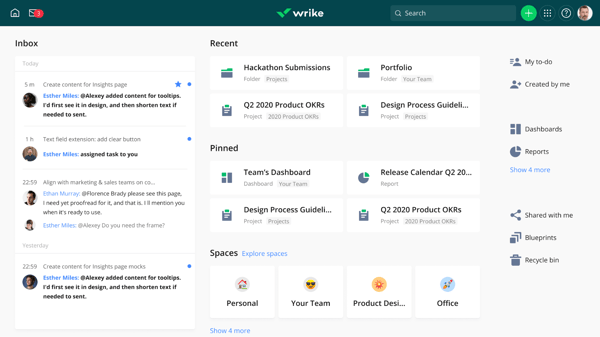
Another area that adds structure is how work gets initiated. Wrike’s request forms help standardize incoming tasks, so teams can capture the right information upfront and reduce back-and-forth, especially when multiple stakeholders are involved.
I also noticed across many reviews that the critical path feature stood out, especially for more complex projects. It automatically adjusts timelines based on dependencies, which makes it easier to see what actually impacts delivery without manually mapping everything out.
Wrike scores 90% in collaboration and remote work, and 88% in task prioritization, which tells me it’s doing well in the exact areas where teams struggle once work becomes more complex. It also scores highly for support and meeting requirements, which adds another layer of reliability when teams depend on it daily.
From what I gathered through G2 reviews, Wrike’s interface and reporting experience don’t always feel as intuitive as expected, particularly when working with dashboards or building custom reports. In some cases, teams may need to adjust views or export data to get the exact level of detail they’re looking for, which can add extra steps to everyday tracking. That said, for teams focused on structured execution, the platform still provides a consistent foundation for managing and monitoring work.
The mobile experience is another area where feedback points to some limitations. Certain actions, like managing users or working through more detailed workflows, can feel less seamless compared to the desktop version. Even so, for quick updates and on-the-go visibility, the mobile app supports basic workflows effectively.
If your team is dealing with layered projects, multiple stakeholders, and ongoing coordination challenges, Wrike tends to fit that environment well. It’s not the lightest tool to get started with, but once it’s set up, it brings a level of structure and visibility that makes complex work much easier to manage.
What I like about Wrike:
- It handles high-volume, multi-project environments well, making it easier to manage dependencies, priorities, and timelines without losing track of work.
- It reduces the need for constant status updates by giving teams clear visibility into progress, ownership, and next steps.
What G2 users like about Wrike:
“Wrike feels like a complete package when it comes to project management and work collaboration tools. On top of that, it’s by far one of the most leading-edge options in terms of AI and innovation, helping revolutionize how we work every day.”
– Wrike review, Sherrie B.
What I dislike about Wrike:
- Navigation can feel more process-driven than lightweight tools, with some actions taking additional steps early on, but this usually improves once teams settle into a consistent workflow.
- The mobile experience can feel more limited compared to the desktop version for certain actions, however, it remains useful for quick updates and staying connected to work on the go.
What G2 users dislike about Wrike:
“I wish the request forms were more built out and easier to create. Dating tasks and subtasks can be confusing on the dashboard view when working with a date range. I also find sorting projects from oldest to newest does not always work the way I think it should.”
– Wrike review, Roni B.
8. Keka: Best for HR-driven work management and employee operations
G2 rating: 4.5/5 ⭐
Most HR tools don’t fail because they lack features. They fail because everyday tasks take longer than they should. Things like running payroll, checking attendance, or updating employee records end up involving too many steps or too many systems. When I looked into Keka, it felt like the focus was on making those everyday workflows simpler.
What makes that noticeable is how everything is laid out. Payroll, leave tracking, attendance, and employee data all sit within the same system, and more importantly, they connect in a way that doesn’t require constant manual input. It’s the kind of setup where you’re not thinking about the tool, you’re just getting through routine tasks faster.
The ease of use plays a big role here. Most teams don’t need much time to get comfortable with it, and the interface doesn’t get in the way of basic tasks. That lines up with G2 Data as well, where Keka scores above 90% across ease of use, setup, and administration.
What also adds flexibility is how policies and workflows can be configured to match how a company operates. Things like leave policies, approval flows, and payroll rules can be adapted without needing workarounds, which makes it easier to align the system with existing processes instead of changing them.
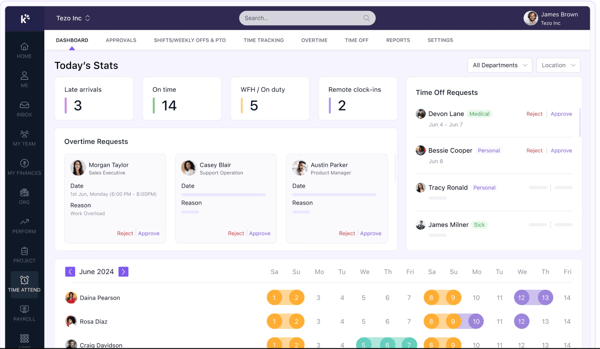
Something else that stood out while going through user feedback is how consistent the experience feels across different HR functions. Payroll processing, attendance tracking, and employee updates follow similar workflows, which reduces the chances of errors and keeps things predictable. For teams handling these tasks daily, that consistency matters.
It also extends into the hiring function. From job postings, candidate search to tracking candidates through different stages, having that built into the same system keeps recruitment and HR data more connected. This end-to-end visibility makes it easier to standardize and optimize hiring workflows as teams scale.
About 74% of Keka’s users come from mid-market companies, which makes sense given how it’s designed. It fits teams that need reliability and efficiency without the overhead that usually comes with more complex HR management systems. This positioning makes it a practical choice for growing teams that want structured processes without added complexity.
What also adds reliability is the ability to track changes across the system. Having visibility into updates and actions creates a clear audit trail, which helps teams maintain accountability and reduces confusion when managing employee data over time.
Keka is clearly designed to make core HR operations straightforward, which works well for teams running standard workflows. That said, organizations with more specialized payroll policies, reporting needs, or process variations may find that the platform offers less flexibility than more configurable HR systems. For many mid-sized teams, though, that simplicity is part of the appeal.
Performance feedback follows a similar pattern. Day-to-day use is generally smooth, but during peak periods such as payroll runs, some teams note that responsiveness can vary slightly. Even so, for teams that prioritize ease of use and reliable handling of routine HR operations, Keka still comes across as a practical fit.
If your team is spending too much time managing HR processes instead of improving them, Keka is the kind of tool that can clean that up quickly. It’s a strong fit for mid-sized teams that want something reliable and easy to run, without getting pulled into complex setups or heavy configuration.
What I like about Keka:
- It simplifies HR operations in a way that feels intuitive from the start, making it easy for teams to manage payroll, attendance, and employee data without extensive training.
- Its strong usability across setup, admin, and daily workflows makes it especially effective for growing teams that need structure without added complexity.
What G2 users like about Keka:
“What I appreciate most about Keka is the way it brings together all the essential HR processes into a single, unified platform. Its intuitive interface makes managing attendance, leave, and payroll straightforward and hassle-free. Additionally, the mobile app and GPS-based attendance features provide valuable flexibility for employees who work in the field.”
– Keka review, HR T.
What I dislike about Keka:
- Keka is designed to work especially well for standard HR and payroll workflows, so teams with more complex or highly customized requirements may need to explore how far its flexibility aligns with their needs, particularly as they scale.
- During heavier usage periods like payroll cycles, responsiveness may vary slightly at times, though it generally remains dependable for routine tasks and continues to support smooth day-to-day HR operations.
What G2 users dislike about Keka:
“One thing I feel could be improved in Keka is customization. Sometimes it would be better if users had more options to customize reports or workflows according to their needs. Overall, these are minor improvements, and the platform still works well for managing HR tasks.
– Keka review, Mahboob B.
9. Teamwork.com: Best for managing client work and billable operations
G2 rating: 4.4/5 ⭐
Most project tools are built around internal execution. You assign tasks, track progress, and move work forward. But once clients are involved, the dynamic changes. Deadlines become external, visibility matters more, and time starts tying directly to revenue. That’s the context Teamwork.com is built for, and it’s something I kept coming back to while going through the product and the data.
What makes that noticeable isn’t just the feature set, it’s how everything connects. Tasks don’t sit in isolation. They’re tied to time tracking, workload, and project progress in a way that gives a clearer picture of delivery. I found myself looking at it less as a task manager and more as a system that shows what work is actually costing in terms of time and effort.
That shift shows up clearly in how teams describe using it. A lot of feedback points to managing multiple clients at once without losing track of deadlines, workload, or billable time. The system doesn’t just organize work, it helps keep delivery predictable when projects start overlapping.
The numbers reinforce that as well. Teamwork.com scores 98% for cross-system integration, along with 93% for remote work and 90% for collaboration. From what I can see, those aren’t just feature scores, they reflect how well the platform handles work that moves across tools, teams, and client communication.
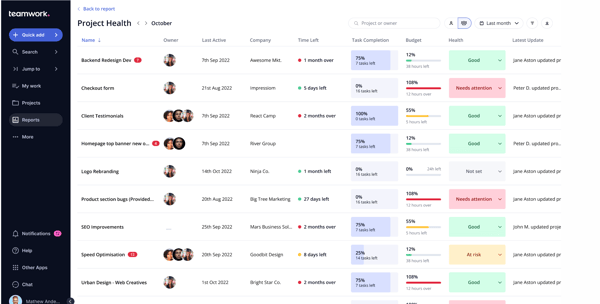
That same idea carries into how information is shared externally. Teams can create client-facing views of projects, which makes it easier to keep stakeholders informed without exposing internal discussions or unfinished work. This controlled transparency helps maintain professionalism while still giving clients real-time visibility into progress.
I also kept noticing how central time tracking and workload visibility are to how teams use it. Work isn’t just assigned and completed, it’s measured. Teams are tracking effort, capacity, and timelines in the same place.
That connection extends into how teams handle billing as well. Time tracked against tasks can be turned directly into invoices, which reduces manual work and helps teams move from delivery to payment without switching systems. It creates a more seamless transition from execution to revenue, limiting errors that often come with manual invoicing processes.
This makes it particularly relevant for teams operating within project collaboration software environments where accountability and timelines are tied directly to client outcomes. It aligns day-to-day execution with measurable business results. For teams that need to justify performance against client expectations, that level of alignment is critical.
About 57% of customers are small businesses, and 33% are mid-market teams, which suggests it’s being used by organizations that need structure around delivery but don’t want to over-engineer their workflows.
Adoption is another signal I found interesting. With 79% user adoption, it’s not just a planning tool that gets set up and forgotten. Teams seem to rely on it consistently during actual client delivery, which is where most tools tend to fall short.
It is very clearly built around client delivery, and that focus is what makes it effective for agencies and service teams. At the same time, teams looking for highly customizable internal workflow design may find the platform more delivery-oriented than broadly flexible. In other words, it tends to work best when timelines, client visibility, and billable effort are the main priorities.
Its reporting and deeper configuration options also come with a bit of a learning curve. While the platform offers strong overall visibility, teams that want highly customized reporting across multiple projects may need more time to understand how to get the exact views they need. For service-based teams, though, the connection between delivery, time tracking, and workload planning remains a strong advantage.
Teams that manage client work usually don’t struggle with task tracking. They struggle with visibility across delivery, timelines, and effort. That’s where Teamwork.com starts to make more sense to me. It keeps those pieces connected in a way that makes managing multiple projects a lot more predictable.
What I like about Teamwork.com:
- It connects task management with time tracking and delivery, making it easier to manage client work without switching between tools.
- Its strong integration capabilities help keep workflows aligned across systems, which is especially useful in client-facing environments.
What G2 users like about Teamwork.com:
“I have been using Teamwork.com for 2+ years and I cannot imagine managing multiple clients and projects without it. It gives me visibility into what my team is doing, how much time they have spent on a task, and where we are lagging, helping me manage their workload as well as plan ahead. It is very easy to clock in time on tasks and edit/reopen them, depending on the client’s feedback.”
– Teamwork.com review, Ayesha K.
What I dislike about Teamwork.com:
- Teamwork.com is strongly focused on client delivery, which works especially well for service-based teams, though teams looking for highly customized internal workflows may need to assess how it fits their broader use cases. This focus helps keep delivery workflows clear and easy to manage.
- Some advanced features and reporting configurations may take a bit of time to get comfortable with initially, but once set up, they provide reliable visibility and make it easier to track project performance consistently.
What G2 users dislike about Teamwork.com
“The mobile app’s performance could use some improvement, as it sometimes lags when handling large projects. Additionally, the pricing may become a bit costly for expanding teams, particularly when there is a need for advanced features.”
– Teamwork.com review, Mansoor K.
Other work management software worth considering
While the tools above cover most core work management use cases, a few platforms stand out for more specialized needs, whether that’s simplicity, operational depth, or customization.
- Basecamp: Best for teams that want a minimal, no-overhead approach to collaboration without complex workflows
- Scoro: Best for businesses that need to connect project work with billing, budgeting, and overall operations
- Zoho Creator: Best for teams looking to build custom internal tools instead of using pre-defined workflows
Other high-performing work management tools worth exploring
If your needs are more specific, like resource planning, lightweight tools, or structured systems, these platforms are worth a closer look:
- Float.com: Best for teams that need clear visibility into who’s working on what and when (capacity-first planning)
- Freedcamp: Best for teams that want a flexible, low-cost alternative without sacrificing core functionality
- morningmate: Best for teams that want a simple, team-first workspace focused on daily coordination and communication
- Bordio: Best for teams that prefer a lightweight planner-style approach to managing tasks, schedules, and team workloads
- Backlog: Best for teams that need structured task tracking with a stronger focus on development workflows and issue management
Frequently asked questions (FAQs) about the best work management software
Got more questions? Here are the answers based on what I’ve seen teams actually evaluate when choosing the right work management platform.
Q1. What is the top-rated work management platform for enterprises?
For enterprise teams, Smartsheet stands out for its structured project tracking and reporting capabilities, especially in environments with complex dependencies. Wrike is another strong option when teams need more control over workflows, approvals, and cross-team coordination at scale.
Q2. What is the best work management tool for cross-functional teams?
For cross-functional collaboration, monday Work Management works well when teams need flexibility across different workflows, while Asana is a better fit when clarity, ownership, and structured execution are the priority.
Q3. Which solution supports agile and waterfall project methodologies?
Teams working across both agile and waterfall approaches often look at ClickUp for its flexibility across views and workflows, while Smartsheet is better suited for structured planning with timelines, dependencies, and more traditional project tracking.
Q4. Which work management platform offers the most comprehensive task and project tracking?
If the goal is to centralize everything in one place, ClickUp stands out for bringing tasks, goals, dashboards, and reporting together, making it easier to manage work end-to-end without relying on multiple tools.
Q5. What platform provides detailed analytics on work efficiency?
For deeper reporting and performance tracking, Smartsheet is a strong choice for structured analytics, while Wrike provides more visibility into workflows and execution across teams.
Q6. What platform integrates work management with collaboration tools?
Slack plays a unique role here as a communication layer that integrates with multiple work management tools. For teams looking for built-in collaboration, ClickUp and monday Work Management combine messaging, updates, and task management within the same platform.
Q7. What is the most affordable work management software for SMBs?
For SMBs, Teamwork.com is particularly well-suited for client-facing teams that need structured delivery without complexity, while ClickUp and monday Work Management offer flexible pricing and scalability for growing teams.
Q8. Which vendor provides real-time work progress dashboards?
For real-time visibility, monday Work Management stands out for its visual dashboards, while Smartsheet offers more structured reporting for complex environments. ClickUp sits in between, with highly customizable reporting options.
Q9. Which vendor offers AI-powered work prioritization features?
AI capabilities are still evolving, but ClickUp, Wrike and monday Work Management are actively incorporating AI-assisted features for prioritization and workflow automation, particularly in structured task environments.
Q10. Which tool supports multi-department work management?
For multi-department coordination, ClickUp works well when teams need flexibility across workflows, Asana provides clarity and structured execution, and Wrike is better suited for organizations that require more controlled, process-driven coordination.
Make work actually work
After going through all these tools, here’s what I’ve realized: managing work isn’t the hard part anymore. Making it visible, aligned, and actually actionable is.
Most of these platforms, whether it’s Slack, Asana, monday Work Management, ClickUp, Wrike, or even tools like Confluence and Keka are powerful in their own way. Tasks get tracked. Workflows can be automated. Dashboards give you visibility. But the real difference shows up in how well your team actually uses the tool day to day.
Because the real bottleneck isn’t creating tasks or assigning work. It’s everything around it — keeping updates consistent, reducing back-and-forth, making sure everyone knows what matters, and ensuring work doesn’t quietly slip through the cracks. Even the best tools fall apart when they don’t fit how teams actually operate.
That’s what stood out to me the most while evaluating these tools. The ones that work best aren’t just feature-rich, they reduce friction. They make it easier to plan, collaborate, and execute without constantly chasing clarity. And that’s ultimately what work management software is supposed to do: bring order to how work flows across teams.
So yes, pick a tool with the right features. But more importantly, pick one that your team will actually use consistently, every day.
If you’re looking to go deeper into structured planning and execution, exploring the project management software category on G2 can help you compare tools built specifically for timeline-driven and cross-functional work.

💸 Earn Instantly With This Task
No fees, no waiting — your earnings could be 1 click away.
Start Earning
