


I evaluated 15+ tools to find the 10 best email management software in 2026. These include Microsoft 365, Superhuman Mail, Missive, Front, Hiver, Microsoft Exchange, Hive, Neo, Thunderbird, and Titan.
The constant flood of messages from different teams, clients, and projects was overwhelming. Important updates got lost, and I scrambled to meet deadlines, often realizing too late that I’d missed something critical. Emails became a constant source of stress.
That’s when I started exploring the email management software options.
I wanted a real fix, not another app or productivity hack. So I went deep into G2 reviews, analyzing what users said about each tool and comparing the top email management software on the features that actually mattered.
What I found is that the best of these tools do more than tidy an inbox. Reviewers credit them with restoring order to a chaotic workflow, and bringing back a sense of calm along with it.
If your email is starting to feel like a never-ending source of stress, keep reading. Below are the 10 best email management tools that stood out when I compared more than 5,000 G2 reviews, the ones users credit with taking back their time and productivity.
10 best email management software: My picks for 2026
- Microsoft 365: Best for teams already working across Microsoft apps
Integrates Outlook, OneDrive, and Teams for a unified communication and file management workflow. (starts from $9.99/user/month) - Superhuman Mail: Best for individuals who want keyboard-driven inbox speed
Utilizes keyboard shortcuts and AI-powered triage to manage high-volume email at unparalleled speed. (starts from $30/user/month) - Missive: Best for small teams that want shared inboxes with built-in chat
Combines team inboxes across email, SMS, and social with internal chat and comments so a team replies in one place. (starts from $18/user/month) - Front: Best for customer-facing teams handling high volumes of client email
Routes shared inboxes, assignments, and messages from email, SMS, and social with internal comments so support and account teams answer clients together. (starts from $35/user/month) - Hiver: Best for teams that run shared inboxes inside Gmail
Manages customer, sales, and support emails collaboratively inside the native Gmail interface using assignment and notes. (starts from $35/user/month) - Microsoft Exchange: Best for large organizations that need on-premises email control
Runs Exchange Server SE on infrastructure your organization controls, with deep admin control and built-in protections like MFA, anti-malware, and data loss prevention. (pricing varies with server and client access licenses) - Hive: Best for teams that manage email alongside projects and tasks
Brings email into a project workspace with boards, Gantt views, and assignments so messages become tracked work. (starts from $7/user/month) - Neo: Best for small businesses that want affordable email on a custom domain
Provides professional domain email, plus a free domain option and a one-page AI website, for small businesses starting out. (starts from $1.99/mailbox/month) - Thunderbird: Best for an open-source, customizable email application
A free, desktop-based app with strong security and automatic filtering that supports multiple accounts and interface add-ons. (free, open-source) - Titan: Best for small businesses wanting domain email with built-in productivity tools
Offers a professional domain email with built-in productivity tools like email templates and advanced spam filtering. (available on request)
*These email management tools are top-rated in their category, according to G2’s Summer 2026 Grid Report. I’ve also added their starting prices for paid plans to make comparisons easier for you.
My top 10 best email management software recommendations for 2026
The best email management software is designed to sit on top of your inbox and help you organize, prioritize, and track emails so the ones you need surface and the rest stay out of the way.
Across the G2 reviews I analyzed, the same capabilities came up repeatedly: automatic categorization, priority tagging, fast search, shared inboxes, and reminders that keep a request from slipping past its deadline.
That job gets harder every year. The average worker now receives 117 emails a day, most skimmed in under a minute, on top of a stream of messages and notifications that interrupts them about every two minutes. At that pace, sorting by hand stops working, and one buried message can become a missed deadline.
What I kept seeing across the reviews is that the best of these tools earn their place by taming that overload.
How did I find and evaluate the best email management software?
I started with G2’s latest Grid Report to see which email management platforms stood out for usability, feature completeness, and real-world performance. I worked from G2 Satisfaction scores, feature ratings measured against the category average, and the customer-size mix behind each product.
I then analyzed more than 5,000 verified user reviews across the 10 tools on G2, using AI to surface the themes reviewers raised most often, and read the underlying reviews to confirm each one in their own words. These reviews helped me understand each tool’s strengths and weaknesses, guiding me to what works best for managing emails effectively.
All product screenshots featured in this article come from official vendor G2 pages and publicly available materials.
What I look for in an email management software
When evaluating an email management tool, there are a few key features I prioritize to ensure it suits my needs:
- Ease of organization: Managing a cluttered inbox can be overwhelming, so I look for a tool that can automatically sort and categorize my emails into folders, labels, or priority lists. Features like smart filters are invaluable in ensuring that emails are automatically grouped by subject, project, or urgency. This allows prioritizing tasks without wasting time sorting through irrelevant messages. Using tags or folders for different client communications or team projects helps instantly identify important messages and avoid losing track of time-sensitive information.
- Search functionality: A powerful search feature is non-negotiable. I treat fast, precise search as a baseline requirement — whether it’s from months ago or buried years deep in my inbox. Advanced search capabilities, such as filtering by keywords, sender, date range, or attachments, make it easy to retrieve specific emails even in the most cluttered inbox. I also appreciate tools that offer search indexing or artificial intelligence-based suggestions to improve search accuracy, allowing users to locate important details in seconds rather than scrolling endlessly.
- Collaboration and shared inboxes: I look at how a tool handles shared inboxes: assigning an email to one person, leaving internal notes or comments on a thread, and showing who is already replying, so two people never answer the same customer. This matters most for support, sales, and client-facing teams.
- Integration: Efficiency is key for me, and I look for a tool that cleanly connects with other apps used daily, like calendars, task managers, or project management platforms. The ability to integrate with services means a user can manage appointments, to-dos, and project timelines directly from my inbox. This kind of connectivity simplifies workflow and minimizes the chances of missing crucial updates or deadlines.
- Productivity features: Tools like snooze options, follow-up reminders, email scheduling, and email templates are essential for staying on top of important communications. I especially look for snooze options to temporarily remove non-urgent emails from my inbox that helps focus on higher-priority tasks. Follow-up reminders ensure one doesn’t forget to respond to important messages, while email scheduling allows sending messages at optimal times. The ability to save and reuse email templates for frequent communications also saves significant time.
- AI features: AI has become the clearest differentiator today, so I check what a tool actually automates: triaging and prioritizing incoming mail, drafting replies in your tone, and summarizing long threads. I also note whether the AI is built in or sold as a paid add-on, since that changes the real price.
- Security: Since email often contains sensitive information, security is a top priority. A tool with end-to-end encryption, two-factor authentication (2FA), and advanced spam filters ensure data remains protected from cyber threats. Including anti-malware scanning of attachments and secure email storage that add an extra layer of protection from unauthorized access or potential data breaches. I also look for tools that automatically detect suspicious activity without requiring manual intervention.
- Customizability: A great email management tool should allow personalization. I check how far a buyer can tailor the tool: color-coded labels, custom notification rules, signatures, and layout or theme options. Small adjustments like these let a tool fit an existing workflow rather than forcing a new one.
The list below contains genuine user reviews from our best email management software category page. To qualify for inclusion in the email management category, a product must:
- Sort emails into predefined folders automatically
- Provide advanced filters and search capabilities
- Include snooze, unsubscribe, auto-archive, or blocking functionality
- Integrate with major email software providers and clients
This data was pulled from G2 in 2026. Some reviews have been edited for clarity.
G2 researchers say:
“The email management category on G2 has performed consistently well since its creation. It has grown steadily in category page views month after month, with a steady increase and spike of interest in recent months. The increase in interest likely came from buyers recognizing the value of having a program that can manage their emails by categorizing and prioritizing what should be focused on by the user, thus allowing businesses to run more efficiently and making it easier for client-facing teams to manage conversations and tickets for overall customer success.”
– Marina Schlosser, Market Research Analyst, G2
1. Microsoft 365: Best for teams already working across Microsoft apps
Microsoft 365 is a default choice for managing email inside the Microsoft world, because of how tightly it connects with the productivity apps teams already run. One standout is its connection with Outlook, which keeps a cluttered inbox manageable.
Across 5,700+ G2 reviews I analyzed, Microsoft 365 holds a 4.6 out of 5 rating and its reviewers split almost evenly across small business (35%), mid-market (38%), and enterprise (27%). Even at that scale, G2 Data shows 97% of users rate it 4 or 5 stars, with 94% saying it meets requirements, four points above the category average.
The tightest link, and the one I weight most heavily, is with Outlook. G2 reviewers put Microsoft 365’s Outlook integration at 94%, well above the 83% category average, and in the reviews I analyzed said email, calendar, and contacts behave like one system instead of three. For anyone who already lives in Outlook, that means fewer tabs and no copying details between a mail app and a separate calendar.
The feature I’d flag first for a busy inbox is the focused inbox, which intelligently filters important emails into a dedicated folder while less urgent ones are sorted separately. It learns which senders matter and pulls them into one view, pushing newsletters and low-priority mail aside. Reviewers describe it as the thing that makes a morning of 100-plus messages feel triaged before they’ve start replying.
OneDrive is where the suite’s connectedness shows up in daily email. I saw reviewers repeatedly mention attaching or sharing large files straight from the cloud, sending a link instead of a heavy attachment. For teams that pass big decks and spreadsheets around, that keeps files in one place and sidesteps the bounced-attachment problem.
Automation is a quieter strength. G2 Data rates Microsoft 365’s email automation at 92% against an 86% average, and the reviewers credit rules for doing the sorting that people used to do by hand, including routing client mail to a folder, flagging anything from the boss, filing receipts on arrival.
For people who think in projects rather than folders, tags and categories do the heavy lifting. G2 scores tags at 92% versus an 85% average, and I noticed reviewers using color-coded categories to slice one inbox across several clients or workstreams at once. It is a small feature that makes finding a thread weeks later much faster.
To my reading, what makes Microsoft 365 more than an email app is that the inbox sits in the same place as Teams and SharePoint. The same document moves from a chat to an email to a shared library without re-uploading, and a thread can turn into a meeting in a click. For a team already standardized on Microsoft, I see that continuity as the real reason email management feels native here rather than bolted on.
While Microsoft 365’s feature set is impressive, a few areas could be more intuitive. G2 reviews I analyzed often note that the advanced layer, automation rules, and shared mailbox management can feel overly complex to set up. Once you learn the system, it’s powerful, but simplifying those processes can make advanced tools more approachable for everyday users.
Pricing is easier to justify when Microsoft 365 is replacing more than email. Teams already using Office apps, Teams, OneDrive, and Microsoft’s admin or security tools are more likely to see Outlook as part of a strong bundle. The tradeoff is that licensing can feel complex for email-only buyers, especially when sorting through plans and add-ons. For a Microsoft-first organization, the value becomes much clearer.
For the Outlook-and-Office crowd, Microsoft 365 is the email home I’d recommend first.
What I like about Microsoft 365:
- I keep coming back to the Outlook and OneDrive integration in the reviews. G2 users describe email, calendar, files, and tasks behaving like one system, so they are not hopping between apps to send a single message.
- The Focused Inbox feature is the one I’d highlight for high-volume inboxes. Reviewers credit it with separating the mails that matter from the noise so triage takes minutes, not the morning.
What G2 users like about Microsoft 365:
“Honestly, it’s the integration piece for me. Everything just works together—emails, files, chats—so I’m not wasting time jumping between platforms. I can hop from an Outlook email straight into a Teams conversation, pull in a file from SharePoint, and keep everything moving without breaking my flow.
It’s also been really reliable performance-wise, which makes a difference when you’re in it all day—whether I’m managing multiple projects, sharing large files, or jumping between meetings, it holds up without slowing things down..”
– Microsoft 365 review, Ashley H.
What I dislike about Microsoft 365:
- G2 reviewers mention that advanced features take time to set up, especially automation rules, shared mailboxes, and admin controls. For IT-light teams, that means a little ramp-up time, but basic inbox use stays straightforward and the setup pays off once shared workflows matter.
- The subscription is easier to justify for suite users than email-only buyers. If you only need a standalone inbox, the per-user cost can feel heavier, but teams already using Office, Teams, OneDrive, and admin controls are more likely to see the value.
What G2 users dislike about Microsoft 365:
“Some features can be complicated to use. Sometimes I have to go online and look up what the feature does and what it’s limits are. I do wish it was cheaper.”
– Microsoft 365 review, Tyler C.
Explore our top-rated email software and elevate your business’s email management.
2. Superhuman Mail: Best for individuals who want keyboard-driven inbox speed
Superhuman is the tool I’d hand to someone who lives in their inbox and wants it to feel fast. It layers on top of Gmail or Outlook, so nothing about your email account changes. What changes is the speed. In the reviews I analyzed, that one word, fast, comes up more than any other.
It holds the highest G2 Satisfaction score (98 on 100) of any tool in this roundup and a 4.7 out of 5 rating across 1,200+ reviews, with 99% rating it 4 or 5 stars. G2 Data shows its customer mix skews heavily toward small businesses (79%) and the median purchase size is three users, usually concentrated in email-heavy roles where shaving minutes off the inbox actually matters.
The whole app is built for speed. Opening, searching, and moving between messages happen with almost no lag, and reviewers describe clearing a backlog in a fraction of their old time. For someone facing 100-plus emails a day, that pace is the entire pitch, and the reviews I read return to it constantly.
Most of that speed comes from keyboard-first control. You can read, archive, reply, snooze, and search without reaching for the mouse, and reviewers call the swipe-and-shortcut system the thing that saves an incredible amount of time and mental load. It is the feature I’d point to first for anyone who types faster than they click.
I really appreciate the Split Inbox functionality. It lets me categorize emails automatically, which has really helped with keeping my inbox organized. Superhuman’s smart sorting is spot-on. I can prioritize what matters most and not get bogged down by clutter. It allows me to focus on emails that require immediate attention, which helps boost my productivity. Plus, the ability to quickly triage and archive emails with a simple swipe has been a game-changer.
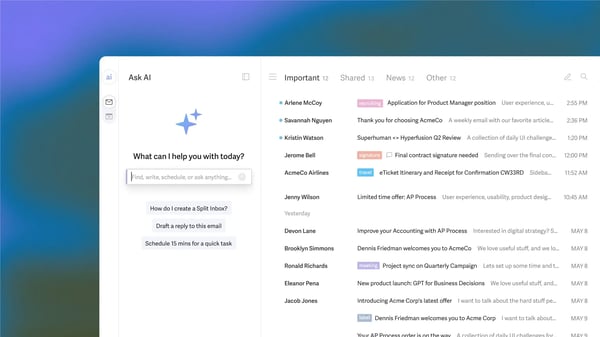
The piece reviewers single out that I’d call underrated is the follow-up system. Snooze, which G2 Data scores at 95% against an 84% category average, lets a message disappear and resurface exactly when you need it, while reminders nudge you when a client has not replied. Reviewers say it turns the inbox into a now or later list, so nothing important quietly slips.
Its newer AI features chase the same goal of less time per email. Reviewers like the AI that drafts replies in their own tone and an AI search that triages and cross-references across the inbox.
Rounding it out are the everyday speed-ups: snippets for the replies you send over and over, and scheduled send that fires a message at the right hour and handles time zones for you. Superhuman makes it easy to schedule emails for a later time.
The main caveat I’d keep is shortcut muscle memory. Several reviewers who liked the speed still said there were many commands to learn. It’s part of the keyboard-first trade-off: once the shortcuts click, reviewers often say the speed is the reason they stay.
Superhuman offers an impressive range of productivity features, though it does come with a learning curve. Some G2 users, myself included, found it takes time to get fully comfortable with all the shortcuts and advanced tools. Once you do, the speed and efficiency easily make up for that initial adjustment period.
Integrations are another area where there’s room to grow. While Superhuman works seamlessly with Gmail and Outlook, reviewers often mention wanting broader connectivity with CRMs or project management tools. Expanding integration options would make it even more valuable for professionals who depend on a connected tech stack.
All in all, Superhuman Mail is the email home I’d recommend to professionals whose day depends on a fast personal inbox, who value how quickly they can sort messages, act on follow-ups, and get back to focused work.
What I like about Superhuman Mail:
- Speed is the headline for G2 reviewers. Many say clearing managing busy inbox feel effortless. The keyboard shortcuts were a game-changer.
- The Split Inbox feature and smart sorting really stood out. They kept my emails organized and helped me focus on what truly mattered.
What G2 users like about Superhuman Mail:
“The keyboard-first navigation saves an incredible amount of time and mental load. It doesn’t seem like it would be a big deal at first, and it takes a brief period to become fluent in Superhuman use, but once you get fast, it’s night and day in terms of ease of swiftly moving through outstanding emails.”
– Superhuman Mail review, Walker W.
What I dislike about Superhuman Mail:
- G2 users found the integration options a bit limited. It works great with Gmail and Outlook, but I’d love to see support for more third-party tools like CRMs or project management platforms.
- Superhuman takes time to master, something I noticed and G2 reviewers mention as well. Once you get familiar with the shortcuts, though, the workflow becomes incredibly fast and efficient.
What G2 users dislike about Superhuman Mail:
“The heavy use of keyboard shortcuts might be a barrier for some people who aren’t power users, as they might have a problem memorizing them, even though there are alternative options like using a mouse. Another issue is the lack of color differentiation for multiple accounts, which can make it difficult to visually separate them, leading to potential mistakes like sending emails from the wrong account.”
– Superhuman Mail review, Ryan E.
3. Missive: Best for small teams that want shared inboxes with built-in chat
For a small team, the hardest part of email usually isn’t the email; it’s coordinating who replies. Missive is built for that. It keeps shared inboxes and a built-in team chat in the same window, so a group can handle one set of client conversations together instead of forwarding messages around. From my read of 800+ Missive reviews on G2, that combination is the thing people value most.
It holds a 4.7 out of 5 rating on G2 and 98% of users rate it 4 or 5 stars. The reviewer mix shows who it fits: about 88% are small businesses, and the top industries are accounting, real estate, marketing, and travel, client-facing teams that live in a shared inbox. Two strong numbers show why it’s valued by small teams: G2 Data puts its quality of support at 95% and ease of doing business with at 97%, both well above the category average.
The first capability I’d point users to is email and team chat live together. Inside any conversation you can leave an internal comment or message a colleague right next to the email, with no forwarding and no separate chat app. Reviewers describe sorting out a client thread inside the same thread. For a small team, the talk about an email finally happens on the email.
Shared inboxes are where that coordination shows up day to day, and what I rate most is the ownership they add. You can assign an email to one person so it’s clear who has it, and see when a teammate is already replying, which reviewers credit with cutting out duplicate responses. A few mentioned the result as a noticeable difference in how they handle support.
Missive also pulls more than email into one place. Alongside Gmail and Outlook, it brings in SMS, WhatsApp, and social messages, so a team answers every channel from the same inbox. G2 Data rates its unified inbox at 92%, above the 86% category average, and reviewers in client-facing roles especially appreciate this. That consolidation is a real draw and the reason I’d pick Missive over an email-only tool when a team works across channels.
Because the chat sits next to the email, teams can also write a reply together. Reviewers point to real-time co-editing and shared drafts as a way to agree on the wording before anything goes out, which is useful when a message is sensitive or a junior teammate wants a second pair of eyes. The part I find underrated is that this is collaboration on the reply itself, not just a comment beside it.
For the routine work, rules and snooze keep the inbox moving. Rules can auto-assign or route incoming mail to the right person or inbox, and snooze hides a message until you need it back. Reviewers describe Missive as an operational layer that handles the sorting, and it is the piece I’d lean on to keep a growing shared inbox manageable.
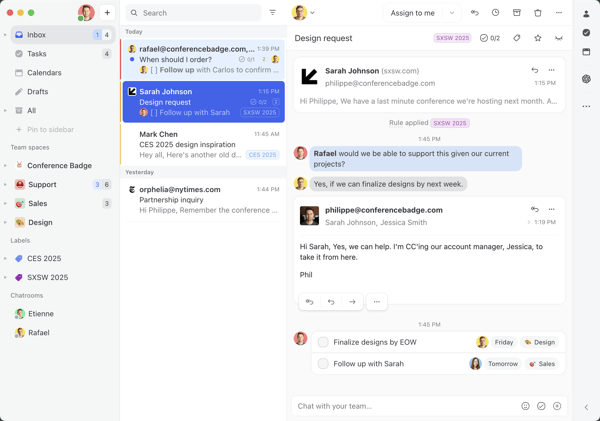
I’d also give Missive credit for how easily it fit an existing stack. Its Gmail integration scores 91% against an 86% average, and reviewers single out the API and configuration options for connecting Missive to the other tools they run. For a team that wants its inbox wired into its own workflow, that openness is part of the appeal.
The one area reviewers wish was better is search. A few say finding older or archived conversations is slow and the filters are limited, and a few admit to jumping back to Gmail to track down an old thread. It doesn’t get in the way of the live collaboration Missive’s main strength: managing live conversations, assignments, and internal comments in one shared workspace, but if your work means digging through past correspondence often, I’d test search against your own archive first.
Missive also does more than a plain inbox, and that depth takes some learning. Reviewers mention that collaboration features like shared conversations, assignments, and internal comments take a little time to click, especially for people coming from a simpler Gmail-style layout. Once those workflows are set up, though, that same depth becomes the reason Missive works well for teams managing email together.
For a small, client-facing team tired of forwarding emails and pinging each other on Slack, Missive solves a specific problem well: it puts the conversation and the coordination in one place. The category-leading support scores tell me teams stay with it, and at a starting price most small teams can absorb, it is the shared-inbox tool I’d shortlist first for collaboration.
What I like about Missive:
- The mix of email and internal chat is what I’d point to first. G2 reviewers describe discussing a client thread right inside the email instead of switching to Slack.
- Shared inboxes with clear assignment stood out to me too, since teammates can see who is handling what, which reviewers say ended their duplicate replies.
What G2 users like about Missive:
“The shared inboxes and internal chat features have completely transformed how our team handles communication. Instead of forwarding emails back and forth or jumping to a separate chat app, we can discuss a client’s email right next to the thread itself. The ability to collaborative-draft responses in real-time saves us hours each week and ensures our messaging is always aligned.”
– Missive review, Saurav K.
What I dislike about Missive:
- While Missive works for everyday inbox use, search is the area reviewers want to see improved. Older or archived threads can take longer to find, so teams that rely heavily on past correspondence should test it with their own archive. For live collaboration, though, Missive’s shared conversations and assignments remain its real strength.
- There is a learning curve, from what I read. The feature depth that makes Missive useful takes a new team a couple of weeks to absorb, though reviewers say it clicks after that.
What G2 users dislike about Missive:
“I do not have many major issues with Missive, but sometimes when there are too many active conversations and tasks together, finding older discussions can take a little extra time. A few settings and workflow options also need some initial adjustment based on personal work style. Other than that, it fits well into my daily clinic communication and follow-up routine.”
– Missive review, Ishan S.
4. Front: Best for customer-facing teams handling high volumes of client email
For a team whose job is answering customers all day, email is a queue to manage, not just an inbox. Front is built around that idea. It turns shared inboxes into a workspace where a support, sales, or operations team can see every conversation, know who owns it, and reply together.
On G2, Front holds a 4.7 out of 5 rating across 2,400+ reviews. The reviewer mix tells where it lands: G2 Data puts about 47% of its reviewers at mid-market companies, the most team-heavy profile here, and the top industries are logistics, supply chain, transportation, and software, essentially operational teams handling steady, high-volume customer contact. This is built for groups, not solo inboxes.
The foundation is a shared inbox that shows who owns what. Reviewers on support teams describe seeing at a glance which conversations are waiting, who is handling each one, and where a follow-up or escalation is needed. For a high-volume queue, I’d rate that visibility as the main reason to move off a plain shared mailbox.
On top of that, the team works inside the conversation. You can assign an email to a colleague, leave an internal comment the customer never sees, and draft a reply together before it goes out. This is the feature reviewers raise most, and the one I’d point to for any team that currently forwards emails or pastes them into chat to ask “how should I answer this?”
What stood out to me is how Front centralizes everything in one place. Reviewers describe handling SMS, WhatsApp, voice, and live chat alongside email, so a customer’s messages across channels sit together. For a team that gets reached five different ways, I’d weigh that consolidation heavily: it is the difference between one workspace and five open tabs.
To keep a high volume moving, Front leans on rules and automation. Reviewers describe auto-assigning incoming mail, auto-tagging by topic, and routing messages to the right inbox with no one touching them. It is the part I’d lean on as a team grows, since it keeps triage from becoming a full-time job, though a few reviewers wish the rules went further for very complex workflows.
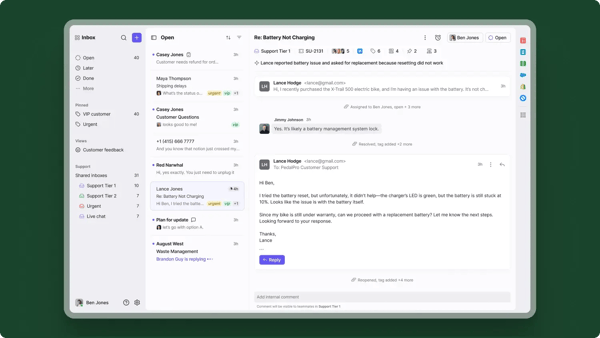
Front’s integrations are a strong point overall, but G2 reviewers mention that syncing with external platforms can occasionally require extra attention. In my case, some Salesforce data didn’t always appear as expected, which meant manually refreshing or double-checking records. It’s manageable, but smoother real-time syncing would make cross-tool workflows feel more seamless.
What sets Front apart for managers is its analytics. Reviewers point to built-in reporting on reply times, message volume, and tags, so a team lead can see where time goes and whether they are hitting response targets. I’d call this the feature that turns Front from a shared inbox into something a customer-operations manager can run the team on.
The everyday details are strong too. Snooze, which G2 Data scores at 94% against an 84% category average, clears a message until you need it; tags (92% versus 85%) keep threads organized; and reviewers like that the interface still feels like a familiar inbox. I’d say this polish is part of why teams stay: it does a lot underneath without feeling foreign on day one.
Front works best when it becomes your team’s main customer-communication hub, and the friction shows up at the edges. G2 reviewers who keep using Gmail or Outlook alongside Front say the two don’t stay in sync and a few note that logging to a CRM like Salesforce can need an extra step. If Front is your one workspace, this rarely comes up.
The other thing I’d weigh is cost. Front is one of the pricier tools here, and reviewers feel it, especially as a team grows or wants specific features that can be billed separately. For a team using the full customer-operations platform, the analytics and automation can justify the spend. Price it against how much of Front you will actually use.
For a support, sales, or operations team handling a steady stream of customer email, Front is the most complete option on this list with shared inboxes, every channel, automation, and the analytics to manage it all.
What I like about Front:
- The shared inbox with clear ownership is what I’d point to first. G2 reviewers describe seeing who owns each conversation and what is waiting, so nothing slips in a busy queue.
- Its analytics stood out to me as the real differentiator. Several reviewers credit the reporting on reply times and volume with helping managers run the team, not just clear the inbox.
What G2 users like about Front:
“Honestly, Front has become one of those tools I didn’t know I needed until I started using it every day.
The shared inboxes have been a game changer for our team. We can assign conversations, jump in when someone needs help, and avoid that awkward moment when two people reply to the same email. It sounds simple, but it saves a surprising amount of time.
One thing I genuinely love is being able to leave internal comments right inside an email thread.
The automated rules are also worth mentioning. The biggest win for me has been the visibility. You can actually see what’s happening across the team — what’s been handled, what’s still open, who’s on it.”
– Front review, Zoe M.
What I dislike about Front:
- Front works best when your team commits to it as the main workspace. G2 reviewers say it may not sync cleanly with Gmail or Outlook if those inboxes stay in use on the side. Once Front becomes the source of truth, the shared inbox, assignments, comments, and automation are much easier to manage in one place.
- Price is the other thing I’d weigh. Reviewers find Front expensive as a team grows, especially when certain features add to the bill. For teams using the full customer-operations workflow, the collaboration, analytics, and automation make the cost easier to justify.
What G2 users dislike about Front:
“I wish Front and Gmail inboxes worked better together. The downside of implementing Front is that you basically have to choose one or the other, either always use Front or always use Gmail, because the two systems don’t sync well. There’s no parity between them.”
– Front review, Ellen R.
5. Hiver: Best for teams that run shared inboxes inside Gmail
Hiver does something the other tools here don’t: it adds shared inboxes and team features to Gmail without taking you out of Gmail. It lives inside the shared inbox and email client your team already uses, so there is no new app to learn.
It holds a 4.6 out of 5 rating across more than 1,200 G2 reviews. In the reviews I read, that fact, that it is Gmail with a team layer added, is the first thing people mention. Its Gmail integration leads the category at 94% versus 86% category average. The reviewer mix skews toward small businesses (64%) among groups already standardized on Google Workspace.
The core I’d point to is a shared inbox that lives in Gmail. Your team works the same shared mailboxes, like support@ or sales@, from the Gmail they already open every morning. G2 reviewers keep coming back to how little training this takes: because it works directly inside Gmail, adoption is fast. For me, that is the biggest reason a team picks Hiver over a separate help-desk app, since no one has to learn a new tool.
From there, you can assign any email to one person, so it is clear who owns it. Reviewers credit this with ending the “who’s got this?” confusion. Each message shows whose name it is under and whether it is open or closed, which they say removes both dropped emails and duplicate replies.
For the back-and-forth, Hiver adds email notes and internal chat right on the thread. A colleague can be looped in with a private note the customer never sees, or tagged in a comment, without anyone forwarding the email or opening Slack. Reviewers like being able to ask questions based on the mail thread without leaving Gmail.
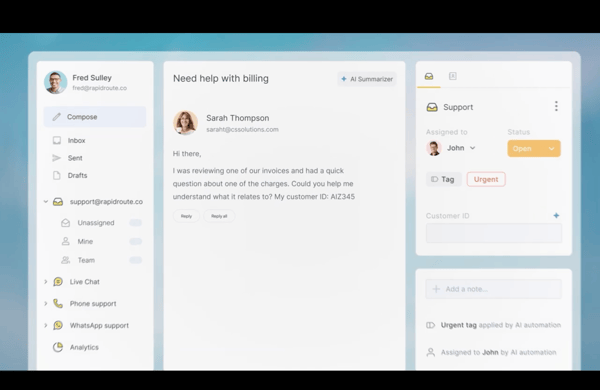
To stay organized, teams lean on tags and templates. Tags, for which G2 Data scores Hiver at 90% against an 85% average, sort threads by client, status, or topic, and templates turn common replies into one click. I’d weigh these as the everyday time-savers that keep a busy support inbox manageable.
What I found different was that Hiver also automates the routine routing. Rules can auto-assign incoming mail, apply tags, and round-robin messages across a team, so triage does not fall on one person. Reviewers call task assignment their main line of workflow. I’d note the automation is lighter than a full help desk, but for a Gmail-based team it covers the everyday cases well.
For team leads, Hiver includes analytics on response times and email volume. Reviewers describe using the reports to see where time goes and track performance against targets, enough to spot bottlenecks without exporting to another tool.
Hiver keeps things light and Gmail-native, which is the appeal, but it also means it’s not a full help desk. G2 reviewers note the automation and analytics cover the basics well yet don’t go as deep compared to full-fledged help desk tools. If you’re scaling quickly and need complex routing or detailed reporting, I’d check that Hiver’s depth keeps up with where your team is heading.
The other gap I noticed in reviews is the mobile app. Hiver is at its best in Gmail on a computer; on the phone, reviewers say the app is thinner. For a team that works mostly from desktops this doesn’t surface; if your people answer from their phones a lot, I’d try the mobile app before rolling it out.
For a team already on Google Workspace that wants to handle shared inboxes without leaving Gmail, Hiver is the most natural fit on this list. It’s easy to adopt, strong on collaboration, and barely a change to anyone’s day.
What I like about Hiver:
- Email notes make it easier to discuss and share feedback within the email thread itself. Reviewers describe looping a colleague in with a private note right on the thread, so the discussion stays attached to the email instead of scattering into Slack or forwards.
- Integration with Google Workspace also stood out to me. Teammates work the same mailboxes inside Gmail with no new app to learn, which G2 reviewers say made adoption almost instant.
What G2 users like about Hiver:
“The best thing about Hiver is how it centralizes our customer interactions directly within Gmail. We needed a way to manage support chat and our docs/knowledge base without jumping between different platforms. Hiver’s knowledge base software is incredibly intuitive; it allowed us to set up a professional help center quickly. The support chat is equally seamless—it feels native to our workflow. Being able to assign chats as tasks and collaborate with the team using internal notes has significantly improved our response time and organization.”
– Hiver review, Enes C.
What I dislike about Hiver:
- The depth ceiling is the main thing I’d point at. Hiver’s automation and analytics cover the basics well but stay lighter than a dedicated help desk, so process-heavy or fast-scaling teams may eventually want more.
- The mobile app is the other area I’d pressure-test. Reviewers say it doesn’t carry the full desktop experience, so teams that clear queues from their phones all day should make sure it covers their must-have actions. For Gmail-first teams working mostly from laptops, though, the app is more of a backup than the main workflow. Hiver’s desktop experience is where the shared-inbox value comes through.
What G2 users dislike about Hiver:
“The same user interface and features could be launched on the mobile app, this allows the user to have the same experience of the web look alike in the mobile app. The mobile app could actually integrate the email, and provide the same features and provide the same dashboard.”
– Hiver review, Skanda V.
6. Microsoft Exchange: Best for large organizations that need on-premises email control
Microsoft Exchange is the one tool here that runs on your own servers rather than in someone else’s cloud. For organizations that need to keep email inside their own walls, for compliance, data residency, or control, it has long been the standard.
On G2, Exchange carries a 4.5 out of 5 rating, and 93% of users say it fulfills their requirements. Its reviewers are the most enterprise and mid-market weighted in this roundup. One piece of context upfront for a 2026 decision: the cloud version is Exchange Online, part of Microsoft 365, and the on-premises version today is Exchange Server SE, the direct successor to 2019 that Microsoft describes as nearly identical to it, with support committed into the next decade.
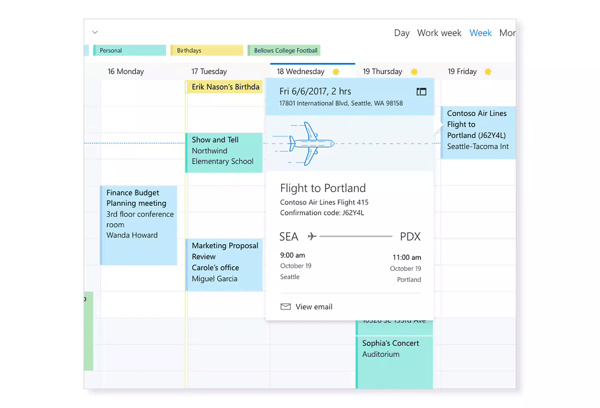
One aspect I genuinely appreciate about Exchange is security features. It supports multi-factor authentication (MFA), data loss prevention (DLP), encryption policies, and anti-spam, all running on hardware you control. For an organization handling sensitive data, reviewers say keeping those protections in-house is the main reason to run their own server.
The deeper reason organizations pick it is control. Your email and its data sit on infrastructure you own, which reviewers describe as giving them a lot of control and a clean answer to compliance or data-residency rules that cloud mail can complicate. I’d weigh this as the single biggest reason an organization chooses on-premises Exchange over a hosted inbox.
What I’d highlight next is how cleanly it fits the Microsoft world. G2 Data rates its Outlook integration at 89% against an 83% category average, and reviewers describe email, calendar, and contacts syncing across Outlook on the desktop, web, and mobile. For a Microsoft-standard organization, that consistency is a real draw.
Day to day, reviewers call it reliable. Shared mailboxes, distribution lists, and calendar and contact sync are straightforward to manage, and meeting invites stay consistent across devices. I’d describe it as unglamorous but dependable, which is what an email backbone should be.
I rate the administrative depth highly for a capable IT team. Through PowerShell and the admin center, administrators get fine-grained control over mail flow, connectors, policies, and permissions, more than most cloud inboxes expose. That depth is the upside of a system that asks a lot of its admins.
 Source: Microsoft Exchange
Exchange can also run on-premises, in the cloud, or as a hybrid of both, and reviewers value keeping some mailboxes on-prem while moving others to the cloud. For an organization mid-transition, I’d note that flexibility as a practical advantage over an all-or-nothing tool.
Getting Exchange up and running take more effort than I expected. Reviewers describe it as heavily PowerShell-driven and dependent on Active Directory, where setup, patching, and mail-flow rules take real expertise and a small misconfiguration can ripple across the system. An organization with a dedicated IT team treats this as the price of control; one without that support, reviewers say, finds it hard to set up and keep running. For smaller setups, I’d see this as the deciding factor.
Running Exchange on your own servers means you also run the upgrades, patching, and hardware, work that Exchange Online hands to Microsoft, and reviewers note the on-premises model lacks the real-time co-authoring and cloud flexibility of Microsoft 365. There is also a version step to get right: deploy the current Exchange Server SE, not the 2019 build, which left support in October 2025. I’d choose on-premises Exchange only when control or compliance calls for it; when they don’t, Exchange Online gives you the same platform without the upkeep.
Exchange is the default when on-premises email is the requirement. For a large, IT-resourced organization that must keep email on its own infrastructure, it’s hard to beat on security, control, and deep Microsoft integration.
What I like about Microsoft Exchange:
- I’d point first to the security and control. Reviewers value being able to manage authentication, data loss prevention, encryption, retention, and mailbox policies on infrastructure their organization owns. For companies with strict compliance or data-residency needs, that level of control is the main advantage.
- Its Outlook and Microsoft 365 integration stands out too. Several reviewers describe email, calendar, contacts, and shared mailboxes staying consistent across Outlook clients, which matters for teams already standardized on Microsoft tools.
What G2 users like about Microsoft Exchange:
“It’s an all-in-one solution that does everything I need—email hosting, calendar scheduling, and strong security. Overall, it feels like the best choice for staying professional.”
– Microsoft Exchange review, Arshiya R.
What I dislike about Microsoft Exchange:
- The initial setup is challenging for newcomers to Active Directory and PowerShell, as reflected in G2 reviews. Early configuration and ongoing maintenance can feel technical, so this is not the easiest choice for IT-light teams. Once it is structured properly, though, that same admin depth gives teams more control over permissions, policies, and how email is managed.
- The real choice I’d weigh is on-prem versus cloud. With Exchange Server, your team owns upgrades, patching, backups, and infrastructure choices that Exchange Online would otherwise handle for you. That adds responsibility, but it also gives organizations more direct control over where email lives and how it is governed.
What G2 users dislike about Microsoft Exchange:
“MS Exchange is difficult to set up in an on-prem environment, and patching also takes a long time.”
– Microsoft Exchange review, Nirmal B.
7. Hive: Best for teams that manage email alongside projects and tasks
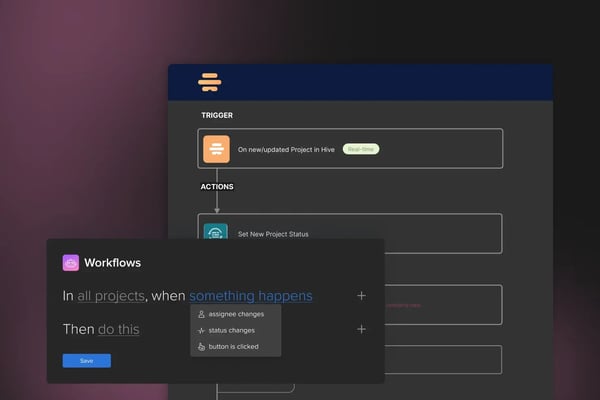
Hive is the odd one out on this list. It isn’t an email app at all, it’s a project-management platform that pulls email into the work. It lets a team turn incoming requests and emails into tasks, then track them on boards and timelines, so the message and the work it creates live in the same place.
On G2, it holds a 4.6 out of 5 rating across 650+ reviews, and 98% of users rate it 4 or 5 stars, so, satisfaction is its strong suit. The reviewer mix tells it leans heavily on small businesses with 50 or fewer employees from marketing and advertising teams, with IT, consumer services, and non-profits behind them, the project-driven groups that drown in intake email.
I’d start with the feature that earns Hive a place on an email list: it turns email and incoming requests into tracked work. Through its Gmail and Outlook connection and intake forms, a message becomes an action card with an owner, a due date, and a status, instead of sitting in someone’s inbox. Reviewers describe being freed from countless emails and status meetings, because the request and the work it creates now live together.
The engine underneath is solid project and task management, and what stood out to me is how little slips once a task leaves the inbox. Reviewers describe handling action cards with statuses and due dates and seeing every project at a glance in a portfolio view. For a team juggling many threads of work, that structure keeps email-driven tasks on track.
What I’d highlight next is how flexibly you can see the work. Hive offers Kanban boards, Gantt timelines, calendars, and table and portfolio views, so the same projects can show up as a board for one person and a timeline for another. Reviewers value viewing each project based on status and filtering to find things fast.
Collaboration is built in, which is part of how it cuts email. Reviewers describe assigning tasks, commenting in context, and using Hive’s chat instead of a separate thread, so the team coordinates around the work rather than in a reply-all. I’d point to this as the quiet reason teams say their inbox volume drops after adopting it.
I rate the time tracking and reporting highly, particularly for the agency and marketing teams that make up most of Hive’s base. Built-in timesheets and dashboards show where hours go across projects, which matters when you bill clients or report on campaign delivery. Reviewers in those roles single it out, even if a few wish the reports went deeper.
Hive also connects to the rest of a team’s stack and automates the routine. Reviewers describe linking Gmail, Outlook, Slack, and Zapier, and setting up rules and recurring tasks so approvals and intake move without manual steps. For a team standardizing its work in one place, I’d weigh that openness as a real plus.
Hive is not a dedicated email client. Email lives inside a work-management platform here, which is ideal for turning messages into tasks but thin if you want a true inbox, a shared support mailbox, or high-volume email triage. Still, G2 Data shows its email-style features, snooze (91%), unified inbox (94%), and tags (97%), all score above category average of around 85%. If email management is most of what you need, Hive belongs alongside a dedicated inbox tool.
Hive’s breadth also means new teams should expect some onboarding time. G2 reviewers say the feature set can feel overwhelming at first, especially for smaller teams trying to turn on projects, email, automations, and reporting all at once. The upside is that Hive gives teams room to build the workflow around how they actually work. Several point to Hive University and responsive support as helpful for getting there.
For a project-driven team, especially in marketing or an agency, that is tired of running campaigns out of an inbox, Hive is a strong fit: it turns the email and intake into tracked work and gives everyone one place to see it.
What I like about Hive:
- I’d point first to how Hive turns email into work: reviewers describe intake requests and messages becoming action cards with owners and due dates, instead of living in an inbox.
- Its flexible views stood out to me too. Many G2 reviewers value seeing the same projects as a board, a timeline, or a portfolio, whichever fits the person.
What G2 users like about Hive:
“It helps me manage different daily work activities in one place without making things confusing. I work as a Dietician & Nutritionist and also create healthcare awareness content for social media, so I use Hive for content planning, patient follow-up tracking, organizing wellness campaigns, and managing healthcare related projects. I like that tasks, subtasks, labels, notes, due dates, and workflow stages can be managed very easily. Features like Table view, Calendar view, status tracking, reminders, notifications, and project organization help me a lot while handling multiple healthcare and educational tasks together. Timeline style tracking is also useful for managing ongoing content schedules and workflow planning.”
– Hive review, Ishan S.
What I dislike about Hive:
- Email is the lighter side of Hive because it’s a work-management tool first. It’s better for turning messages into tasks than running a high-volume shared inbox, but its strong G2 scores for Snooze, Unified Inbox, and Tags show the email layer still works well when tied to project follow-up.
- Hive has a learning curve because it does a lot. The feature set can feel busy for new or smaller teams at first, but Hive University and responsive support help teams get comfortable, and the payoff is a more flexible workspace once the core workflow is set.
What G2 users dislike about Hive:
“It’s not super user friendly when you’re first getting started. I had to invest a lot of time upfront in understanding the user interface, and I wasn’t able to find relevant tutorial videos online or in Hive University. It was not easy, and I dedicated close to a week getting the projects set up enough that I could bring it to my team.”
– Hive review, Zina S.
8. Neo: Best for small businesses that want affordable email on a custom domain
Neo’s pitch is simple: a professional, branded email address for a fraction of what Google Workspace or Microsoft 365 cost. Neo gives a small business its own name@yourcompany.com, plus a free domain and one-page website, if you don’t own one. In my read of G2 reviews, that combination, looking professional without the enterprise price, is what brings people in.
It holds a 4.6 out of 5 rating across more than 130 reviews, and 98% of users rate it 4 or 5 stars. The reviewer almost entirely consists of small businesses and solo operators, in marketing, consulting, accounting, and trades, people setting up a first professional email rather than running an IT department. What they praise most is the mix of low price and ease.
The reason I noticed why most reviewers choose it over the big names is price. They describe Neo as much cheaper than Gmail, with some paying around half of what a previous provider charged per mailbox. For a small business counting every subscription, I’d weigh that saving as the headline.
What I’d highlight next is that Neo is more than email. It pairs the mailbox with a professional email and one-page website builder, so a freelancer or new business can stand up a simple site and a matching email together. Reviewers describe setting up a website and a dedicated business email address in one go, a real shortcut for anyone without a web presence yet.
One feature I truly appreciate is the unified inbox. Instead of juggling multiple email accounts and wasting time switching between tabs, Neo brings all inboxes together in one place, making it super convenient to monitor and respond without feeling overwhelmed. Reviewers say it has saved countless hours they would otherwise spend navigating between various email clients, keeping me focused on what matters most.
The Smart Write AI email generator helps craft emails, especially for routine or repetitive tasks. Smart Write suggests context-appropriate responses and even drafts professional, polished emails in seconds. That’s another time saving tool reviewers point to.
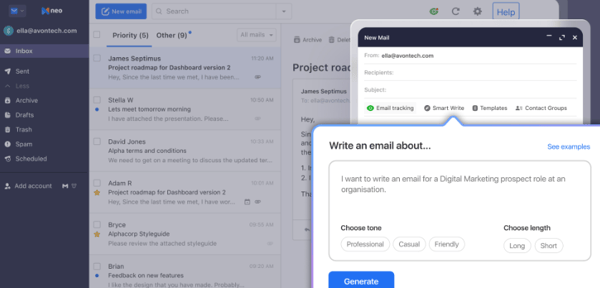
Another highlight is the intuitive user interface. Navigating through emails and folders feels smooth, and reviewers say they never feel bogged down by unnecessary complexity. The layout is clean and easy to follow, and the powerful search functionality allows me to locate any email in seconds.
Neo’s tagging and filtering system has also been a game-changer for organizing my inbox. I can create custom tags for specific projects or clients and set up rules to automatically categorize incoming emails. It’s incredibly satisfying to have a clutter-free inbox that still keeps everything easily accessible with just a few clicks.
Neo’s desktop experience feels reliable and well-organized for everyday email management. A few reviewers point that mobile app doesn’t feel quite as polished. Neo’s web experience is the full product, but the app doesn’t carry everything over, with some features missing and the occasional slowdown on larger mailboxes. For checking and answering email on the go it is fine; if you would run your whole business from your phone, I’d test the app against your daily tasks first.
Neo also handles core email workflows well, which many G2 users appreciate. At the same time, reviews note that integrations with third-party tools are relatively lightweight. For users who rely on calendars, task managers, or broader productivity stacks, this can mean using manual steps or workarounds. However, for straightforward email use, Neo remains consistent and easy to manage.
For a freelancer, solo operator, or small business that wants to look professional without an enterprise bill, Neo is an easy one to recommend: a branded email, a simple website, and a setup you can handle yourself.
What I like about Neo:
- The unified inbox feature gathers all email accounts in one place, making it easier to manage everything without constantly switching between tabs. Reviewers say it saves time and simplifies my workflow, allowing users to stay focused on important tasks.
- Reviewers find the interface to be simple and easy to use. Navigating through emails and using the search function is quick, helping find what users need without unnecessary delays or complications.
What G2 users like about Neo:
“I appreciate Neo for its affordability, as my subscription cost for each email account is 50% of what I paid previously on a different platform, which is a huge saving for my business. The migration process was seamless and easy, with all of my old emails and data moved to my Neo account within just 20 minutes. I am also simply delighted at the professionalism of Neo’s customer support staff, who are polite and very prompt in responding to requests via email at any time. This is the best support I have ever had. Additionally, the setup was extremely easy.”
– Neo review, Rita A.
What I dislike about Neo:
- Neo’s desktop experience feels stable and easy to work with. G2 reviewers also note, however, that the mobile app can feel less consistent, and I noticed occasional hiccups when moving emails or applying bulk actions. For quick inbox checks, it holds up, but extended mobile workflows take a bit more patience.
- Neo is still lighter on advanced features and third-party integrations than more mature email platforms. That may limit teams with complex workflows, but it also keeps the product easier to approach for small businesses that want branded email, core inbox tools, and a simpler setup without too much extra configuration.
What G2 users dislike about Neo:
“Sometimes the mobile application feels a bit slow when loading large datasets, and I would like to see more integration options.”
– Neo review, Vitalii D.
9. Thunderbird: Best for an open-source, customizable email application
Thunderbird has been doing email its own way for two decades: free, open-source, and yours to shape. Thunderbird is a desktop client from Mozilla, the people behind Firefox, built for individuals who want to run email on their own machine without a subscription. In the reviews I read, the people who choose it are the ones who want to own and shape their email setup.
It holds a 4.3 out of 5 rating across more than 330 G2 reviews. It isn’t as slick as the paid clients, but its core email engine is excellent. G2 Data backs that up, its tags (98%), unified inbox (96%), and filtering rules (94%) all sit well above the category average. Its reviewers lean technical small businesses, in IT, software, and internet roles, those comfortable running their own setup.
What I’d put first about Thunderbird is its open-source nature. It’s free, with no subscription fees, and full control is the heart of why people choose it. For anyone who doesn’t want a recurring email bill or a company holding their inbox, that independence is the whole appeal.
Its openness makes it deeply customizable. Reviewers describe adding plugins and add-ons, switching themes, and reshaping the interface to fit how they work, far more than a typical client allows. This is why power users stay: you bend Thunderbird around your workflow instead of adapting to someone else’s.
Another feature that stood out to me is Thunderbird’s automatic email filtering system. The ability to set up detailed filters to automatically sort incoming messages into folders increase productivity. It saves time that would otherwise be spent manually sifting through my inbox.
What I rate highly is how it handles multiple accounts at once. Reviewers describe running personal, work, and even Exchange and IMAP accounts together in one window, and Thunderbird connects to almost any mail server. Its unified inbox is the practical reason people consolidate here.
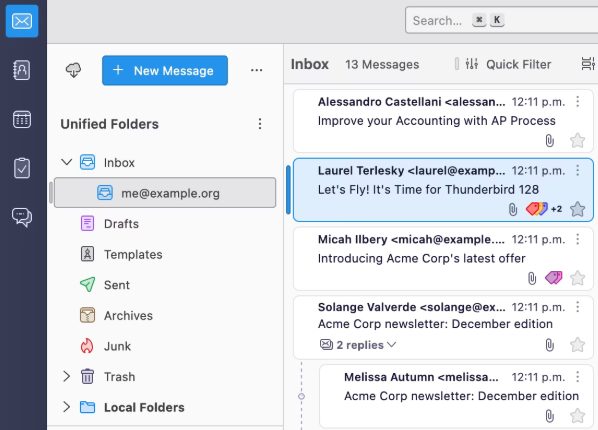
I value the privacy side as much as the price. Reviewers describe keeping email, calendars, and contacts in local folders on their own machine, reachable offline and not parked on someone else’s cloud. For a privacy-minded user, or anyone who works without a constant connection, I’d treat that local control as a real differentiator.
Thunderbird also runs everywhere it needs to, Windows, macOS, and Linux, and reviewers on Linux especially value a capable, native desktop client. I’d note that reach as part of why a mixed-OS household or a Linux user underserved by commercial tools picks it.
Thunderbird’s design is more utilitarian than slick. The recent redesign helped modernize parts of the experience, but a few say the interface is more traditional than newer email clients, and folder management can feel a little rigid when reorganizing or prioritizing messages. The upside is that it stays predictable: once you know where things live, Thunderbird remains a dependable desktop inbox for users who care more about control and reliability than a polished app feel.
Search is the other area I’d look into before moving over a large archive. Some reviewers say older emails can take time to surface, and the search experience may feel less smooth than webmail when you’re hunting for a specific thread. For day-to-day inbox use, it holds up fine, and Thunderbird still works best for users who want a practical, configurable email client.
For an individual, particularly a technical or privacy-minded one, who wants to own their email setup without paying for it, Thunderbird is hard to beat. It’s free, endlessly adjustable, and strong at the core work of sorting and managing mail.
What I like about Thunderbird:
- Open-source and customizable with no subscription fees, giving reviewers full control over the interface and add-ons. The flexibility allows users to tailor the tool to their specific needs, enhancing their workflow without ongoing costs.
- Easily manages multiple accounts, keeping personal and work emails well-organized in one place. It streamlines communication by allowing switching between accounts effortlessly, ensuring everything stays in order.
What G2 users like about Thunderbird:
“Ease of use. Privacy and configuration. It integrates very easily with any email, whether business or commercial, like Gmail or Outlook.
A very simple software that consumes few resources in memory as well as in storage. The best part: TOTALLY FREE.”
– Thunderbird review, Emanuel R.
What I dislike about Thunderbird:
- Thunderbird’s interface is still more practical than polished. Some mention that redesign helped, but a few still find it less modern than newer clients. For users who value a dependable, configurable desktop inbox, its simplicity is also part of the appeal.
- Search is weaker for older emails and deep archive digging. Some reviewers use webmail for tougher searches, but for everyday inbox management, Thunderbird remains steady and reliable.
What G2 users dislike about Thunderbird:
“The feature set is robust, but the user interface could benefit from modernization. Some settings and customization options require extra steps to locate, which may increase the learning curve for new users. While overall integration is solid, the initial setup for certain add-ons or protocols can feel less intuitive than other modern clients. Improving visual clarity and onboarding would enhance usability and reduce friction.”
– Thunderbird review, Emre K.
10. Titan: Best for small businesses wanting domain email with built-in productivity tools
Many people first use Titan when they buy a domain: it’s the business email that hosting providers like Name.com bundle in. Titan gives a small business a professional address on its own domain, with a clean inbox and a handful of productivity tools on top.
It holds a 4.6 out of 5 rating across more than 550 reviews, and 96% of users rate it 4 or 5 stars. What stands out to me is the support: G2 Data puts its quality of support at 95%, the top of its scorecard. The reviewers come almost entirely from small businesses (98%), concentrated in marketing, software, and consulting, the solo operators and small teams who want a professional inbox without an IT department.
I’d start with the reason Titan exists: a professional email on your own domain. Reviewers describe finally getting a name@theirbusiness.com address, often alongside the domain they just bought, and several mention clients taking them more seriously for it. For a small business that has been running on a generic Gmail address, that credibility is the first draw.
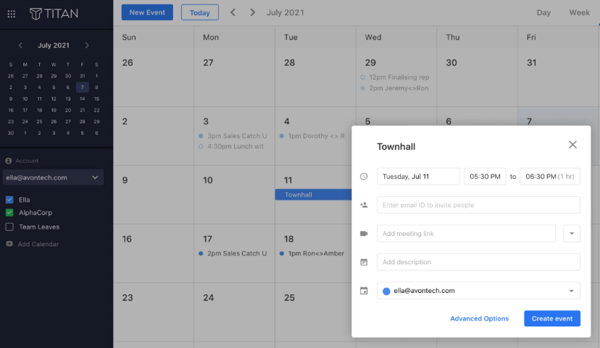
On top of the mailbox, Titan adds the productivity tools. Reviewers single out read receipts most, knowing whether an important email was opened, alongside send-later scheduling and follow-up reminders. I’d weigh these as what nudges Titan past plain email toward a light business toolkit.
I rate the email templates highly for anyone who sends the same message often. Reviewers describe saving canned responses for common inquiries or repetitive tasks, then tweaking them before sending, which keeps replies consistent and cuts repetitive typing. For a one-person business handling its own support and sales, that is a real time-saver.
The interface itself draws steady praise for being clean and uncluttered across web, desktop, and mobile app. Reviewers describe a well-organized inbox with labels, folders, and drag-and-drop, and many single out the mobile app for letting them run business email from anywhere, some note it keeps features on the phone that rivals hide. I’d point to that consistent, low-friction access, backed by a 94% ease-of-use score in G2 Data, as why a non-technical owner picks it up without a manual.
I’d also point to the spam filtering as a quiet strength. G2 reviewers say it keeps junk and clutter out of the inbox while staying accurate enough not to trap legitimate mail, and a common reason people move to Titan is leaving a provider whose deliverability had slipped. For a business that can’t afford to miss a client email, that reliability matters.
Support and reliability also come up again and again in the feedback I analyzed. Reviewers describe email that arrives promptly and a support team they can actually reach, and G2 Data rates quality of support at 95%, well above the category average. For a small business without IT, I’d treat responsive help as part of the value.
I’d set expectations around workflow connections. While Titan covers core business email well and can connect to third-party mail clients through IMAP/POP, a few reviewers mention that the calendar events of iCal are view only and there’s limited sync capability with mobile app. Titan isn’t built like a broad productivity hub with deep two-way integrations across project tools, automation platforms, and external calendars. If you want email tightly wired into a larger operations stack, it’s worth checking your must-have connections first.
The other area I’d pressure-test is archive retrieval, especially on a busy account. Titan does support advanced search strings and filters, but G2 feedback suggests older messages can still take extra effort to find, particularly when inboxes get large or mobile use is heavy. For everyday send-and-reply work, it holds up well; if your team constantly digs through years of email history, I’d test it against your own mailbox before deciding.
For a freelancer or small business that wants a professional, branded inbox with a few productivity tools and none of the enterprise overhead, Titan is what I’d recommend for an affordable, simple, and well-supported software.
What I like about Titan:
- I’ve found custom email templates to be a huge time-saver, letting me quickly personalize repeated messages. The feature has streamlined my communication and helped me maintain consistency in my outreach efforts.
- The advanced spam filtering works well for me. It blocks irrelevant emails without accidentally marking legitimate ones as spam. It ensures my inbox stays organized and reduces the time I spend sorting through unwanted messages.
What G2 users like about Titan:
“One of the features we appreciate most about Titan Email is its mobile applications. They make it easy to stay connected and access emails on the go, whether we’re in the office or traveling. The apps are reliable, easy to use, and provide a seamless experience across devices, ensuring uninterrupted access to important communications whenever and wherever we need them.”
– Titan review, Arda K.
What I dislike about Titan:
- Titan is more of a focused business inbox than a deep workflow-integration hub. It supports third-party email clients and calendar viewing, but teams that rely on tight links to project tools, automation platforms, or external calendars should check those connections first. For small businesses that mainly want branded email, read receipts, templates, and a clean inbox, that simpler scope keeps the experience easy to manage.
- Archive lookup is the area I’d look into based on G2 reviews. Titan has advanced search options, but G2 reviewers still find older messages slower to surface in busy inboxes, especially on mobile. For daily email, though, the inbox stays straightforward, and the search concern matters most for teams that rely heavily on deep email history.
What G2 users dislike about Titan:
“I wish it were easier to integrate Google Meet or another video-conferencing link into calendar invitations sent from my Titan account. It would also be great if it had integrations with platforms like Integrately, Zapier, and others to enhance its automation and workflow capabilities.”
– Titan review, Jason X.
Email management software: Frequently asked questions (FAQs)
Got more questions? We have the answers.
Q1. Which email management platforms do financial-services teams trust most?
Financial-services teams lean on Microsoft 365 and Microsoft Exchange, both built around security and compliance: encryption, multi-factor authentication, and data loss prevention, with Exchange allowing on-premises control of email data. For regulated firms that can’t risk scattered or exposed communication, that control and reliability are usually the deciding factors.
Q2. How can operations teams consolidate scattered client communication quickly?
Front and Missive are the fastest way to pull scattered client email into one shared workspace. Both run on top of your existing inboxes, so a team can assign, tag, and answer together within days, not months, with no IT project. Operations teams use them to replace forwarding chains with a single tracked queue.
Q3. Which email management tools keep emails from getting lost after a team replies?
Shared-inbox tools that assign ownership solve this. In Front, Hiver, and Missive, every message shows who is handling it and whether it’s open, replied, or closed, visible to the whole team. Threads stay as tracked, archived conversations instead of vanishing into one person’s inbox, which ends the dropped emails and duplicate replies of group forwarding.
Q4. Which email management software simplifies the inbox with labels, tags, and collaborative workflows?
Hiver, Missive, and Front pair organization with collaboration: color-coded tags and labels sort mail by client or status, while shared inboxes, assignments, and internal notes let a team work it together. For solo organizing, Microsoft 365 and Thunderbird offer strong tags and filtering rules. The right pick depends on whether you sort alone or as a team.
Q5. Which email management tools allow private comments inside a team’s email threads?
Missive, Front, and Hiver all support internal comments, private notes added to an email that the recipient never sees. Colleagues discuss or approve a reply right on the thread instead of forwarding it or pasting it into Slack, which keeps the discussion attached to the message and out of the customer-facing conversation.
Q6. Which platforms offer drag-and-drop organization and automatic message categorization?
Titan offers a clean drag-and-drop inbox with labels and folders, while Microsoft 365 and Front add rules that auto-assign, tag, and route incoming mail by sender or topic. Thunderbird’s detailed filters do the same on the desktop. Together these turn a flood of incoming email into sorted, prioritized folders with little manual effort.
Q7. Which email management software works inside Gmail without retraining the team?
Hiver, because it runs inside Gmail itself. A team gets shared inboxes, email assignment, and internal notes without leaving the Gmail interface, so there’s no new app to learn and almost no retraining. Reviewers point to that Gmail-native design as the reason Google Workspace teams adopt it within days.
Q8. Which email management tools offer shared inboxes without needing IT expertise?
Hiver and Missive are built for non-technical teams. Setup is self-serve, with no servers or admin work, and the interface stays close to a familiar inbox, so a small team can stand up a shared support@ or sales@ inbox itself. Reviewers in small businesses repeatedly note how little technical help the rollout takes.
Q9. Which email management software is best for managing multiple client communication channels at once?
Front and Missive are the strongest for multi-channel client communication. Both pull email, SMS, social messages, and live chat into one shared inbox, so a team answers every channel from a single place and sees the full history with each customer. That consolidation is why agencies and client-facing teams choose them over email-only tools.
Q10. How secure is email management software?
It can be very secure. Leading tools offer encryption, two-factor authentication, spam and anti-malware filtering, and secure mail protocols. For the tightest control, Microsoft 365 and Microsoft Exchange add data loss prevention and admin policies, with Exchange letting an organization keep email on its own servers, which matters most in regulated industries.
Q11. What is the best free email management software?
Thunderbird is the strongest fully free option, an open-source desktop client with no subscription, multiple-account support, and detailed filtering rules. For free team features, Hiver, Hive, and Missive each offer a free plan with shared-inbox basics. You can compare more on G2’s free email management category.
Q12. How do I manage thousands of emails?
A regular inbox setup usually isn’t enough to manage email at scale. Start with an email management platform that can route, tag, filter, prioritize, and archive messages automatically. Tools like Microsoft 365, Thunderbird, Front, and Hiver help reduce manual sorting by applying rules, surfacing important messages, assigning ownership, and keeping older conversations searchable. For shared inboxes, look for assignments, internal notes, collision detection, and status tracking so emails don’t get buried after someone replies.
Q13. Which email management platforms are most reliable for teams avoiding scattered communication?
Teams rely on shared-inbox tools, like Front, Missive, and Hiver, to keep communication in one dependable place. Each gives every message a clear owner and status and pulls email, and often chat, SMS, and social, out of scattered personal inboxes and forwarded threads. G2 reviewers credit that shared view for consistent, nothing-slips reliability.
I have 99 problems, and my inbox is all of them
After analyzing thousands of reviews of these email management tools, what stands out to me is how much the right one can change your day-to-day with email. Each leans into something different, team collaboration, privacy, or speed, so the best choice comes down to what you need most. With this many strong options, there’s a fit for almost any inbox.
Here’s the reality, though: no tool empties an inbox for good. Email is a constant cycle. My own sits at more than 2,000 unread, so I understand the overwhelm. What the right tool changes is how long digging out takes, and reviewers describe turning what used to be days of sorting into an afternoon.
I hope this rundown helps you find the tool that fits how you work, because, let’s be honest, no one enjoys a full inbox.
Explore free project management tools that will help you streamline your other tasks and stay on top of every project you tackle.

💸 Earn Instantly With This Task
No fees, no waiting — your earnings could be 1 click away.
Start Earning
